

Revive old WordPress posts with AI and Uncanny Automator. Learn how to reverse content decay…
How to Automate WooCommerce Post-Purchase Surveys and Campaigns
Automate WooCommerce post-purchase surveys and campaigns across email, SMS, and more channels. Learn how we’re turning sales into surveys into more sales.
TLDR? 100-word Summary
Post-purchase surveys boost loyalty and drive growth. You can automate and personalize your post-purchase surveys for free with WPForms and Uncanny Automator Lite. Learn how to launch high-engagement follow-ups right from your WordPress site.
- Best practices: timing, segmentation, incentives, closing the loop, and more
- Post-purchase surveys build loyalty, establish brand trust, and fuel future growth
- Options compared: WooCommerce emails vs CRMs vs Uncanny Automator
- Step-by-step: build an automated, personalized post-purchase survey workflow
- Omnichannel ideas: email, SMS/WhatsApp, and on-site forms
I’m going to let you in on a little secret: post-purchase surveys, upsells, and campaigns are the secret weapons that fuel our growth and the growth of your favorite brands.
Here at Uncanny Automator, we’ve been using these post-purchase tools to great effect for years. (It’s part of the strategy we used to grow from a niche plugin to a WordPress essential.)
A well-timed, multi-channel post-purchase campaign can turn one-time shoppers into loyal customers—and loyal customers into your best marketers.
In this guide, you’ll learn how to use Uncanny Automator to create smart, automatic follow-ups that collect feedback, build trust, and bring customers back for more.
Let’s turn every order into the start of a lasting relationship.
Why Post-Purchase Surveys Are E-Commerce Essentials
So, you’ve made the sale—great! Now, you might be thinking that it’s time to simply kick up your feet and count your earnings. I get that urge, too. But there’s more work to be done if you want to grow your business.
Simply put, loyal customers are the bedrock of your growth, and customer loyalty isn’t a product of luck. It’s the result of a carefully curated strategy.
Post-purchase surveys—especially if they’re well-timed and using the right channels—are an essential tool in that strategy.
They help you build stronger relationships, earn trust in your brand, and gather insights to better serve your current and future customers. Oh, and they also boost your bottom line.
But don’t just take my word for it. Here are the numbers:
Post-Purchase Surveys Build Loyalty
Following up with your customers after they have your product in-hand and/or have already used your service shows that you actually care. To the customer, it says, “You’re more than just a sale to us.”
The appreciation customers feel shows in their response rates.
- Emailed post-purchase surveys have response rates of between 15-30% when timed correctly.
- In-app or web-based surveys typically average 20-40% participation.
- Short surveys of 1-3 questions see completion rates of over 80%, with incentives (such as discounts on future purchases) increasing participation by 30%.
Loyal Customers Deliver Better ROI
Growth doesn’t always mean getting more new customers. In fact, penny for penny, pound for pound, existing customers do more to drive growth for small businesses:
- It is 5x cheaper to retain a customer than it is to acquire a new one.
- Nearly two-thirds of a company’s business comes from previous customers.
- A 5% boost in retention can increase profits by 25–95%.
- Loyal customers are 50% more likely to try new products and spend 31% more.
- Selling to existing customers succeeds 60–70% of the time (vs. 5–20% for new ones).
Customer Retention Runs on Communication
Once you have loyal customers, retaining them becomes a matter of communicating. After all, loyal customers are part of your community.
Keeping channels of communication open and active is key to customer retention.
- 89% of marketers use email to keep customers coming back.
- 83% of consumers say loyalty programs make them stay with a brand longer.
Loyal Customers Draw New Customers
Getting and keeping loyal customers actually helps you attract new ones. When customers stick with a business and become part of their community, they are more likely to become unofficial brand ambassadors.
Post-purchase surveys help you give your most loyal customers a platform to help you drive future sales:
- 66% of shoppers trust brands with lots of online reviews.
- 90% of Americans say reviews are key to purchase decisions.
- Even a few negative reviews can increase credibility—68% of consumers distrust brands without them.
Methods for Creating Post-Purchase Surveys in WordPress
Ok. Now, you know how valuable post-purchase surveys are and how they fit into your sales funnel. So, now you’re probably wondering, “How do I actually create post-purchase surveys for my WooCommerce store?”
You have a few options, each with their own unique advantages and disadvantages. Let’s explore.
Native WooCommerce Order Emails
WooCommerce gives its users the ability to set order status notification emails. From your WordPress Admin Dashboard, simply navigate to WooCommerce > Settings > Emails.
From there, you can set which emails you want to send (upon order completion, for example) and draft the email.
However, these built-in notifications are designed for logistics, not relationships.
Advantages:
- Built-in email notifications means you don’t need another tool.
- Minimal set-up required as WooCommerce provides these templates for free.
Disadvantages:
- Limited copy editing and customization limits the marketing functionality of these emails.
- No delays and/or scheduling means that your customers may be getting post-purchase surveys before they have had a chance to use the product/service.
- No segmentation, resulting in all customers getting the same emails regardless of their purchase history, cart total, etc.
- Email only; multi-channel communication (SMS and WhatsApp) not available.
CRMs
CRMs such as HubSpot, Mailchimp, and ActiveCampaign are powerful tools for launching campaigns that convert. They are how most businesses manage their customer relationships—it’s in the name!
For launching your WooCommerce post-purchase campaigns, CRMs are a great option, but still need some help in generating engagement.
Advantages:
- Powerful segmentation, so you can send personalized post-purchase campaigns.
- Delays that help you time your post-purchase surveys perfectly.
- Advanced copy editing and customization so you optimize your email content.
Disadvantages:
- Still requires integration with WooCommerce to properly take full advantage of marketing features.
- Costly; many CRMs are out of the budget for most small businesses.
- Steep learning curves mean that you can sink hours into learning different features and still make mistakes.
Uncanny Automator: The WordPress Way to Automate Surveys
Not to brag (ok, I’m bragging a little), but Uncanny Automator hits the sweet spot for managing your customer feedback.
Not only does Automator have all of the features that you need to send high-engagement post-purchase surveys, but it’s an easy-to-use, low cost solution.
Integrate everything. Automate anything.
Automator connects your favorite apps and plugins (such as WooCommerce to your CRM and form-building plugin) so you can automate your workflows.
When it comes to automating post-purchase surveys, here’s what make Automator stand out:
- Trigger immediate or delayed surveys when an order status changes to completed, delivered, or refunded.
- Send survey invitations via email, SMS, or even WhatsApp.
- Integrate WooCommerce with your CRM to segment customers based on what they bought, how much they spent, or any other parameters you choose.
- Encourage engagement and reward responses with loyalty points, discount codes, or exclusive follow-up campaigns.
And unlike other automation tools, Automator doesn’t charge per-automation fees—so you can collect unlimited feedback without worrying about paying more.
In short: native WooCommerce emails handle transactional communication, CRMs add complexity, but Uncanny Automator gives you the best of both worlds—simplicity, control, and the flexibility to run every post-purchase survey your way.
In the next section, I’ll walk you through a simple automation for collecting those post-purchase surveys.
Step-by-Step: Automating WooCommerce Post-Purchase Surveys
Creating an automated post-purchase survey is a lot easier than you might think. Just follow these steps and get started for FREE!
Step 1: Create a Survey Form
First, if you’re creating a custom survey and not simply using WooCommerce’s native product review feature, you’ll need a form-building plugin like WPForms.
If you have WPForms Pro and the Survey and Polls addon, you can simply start with the Survey Form template and customize it however you’d like.
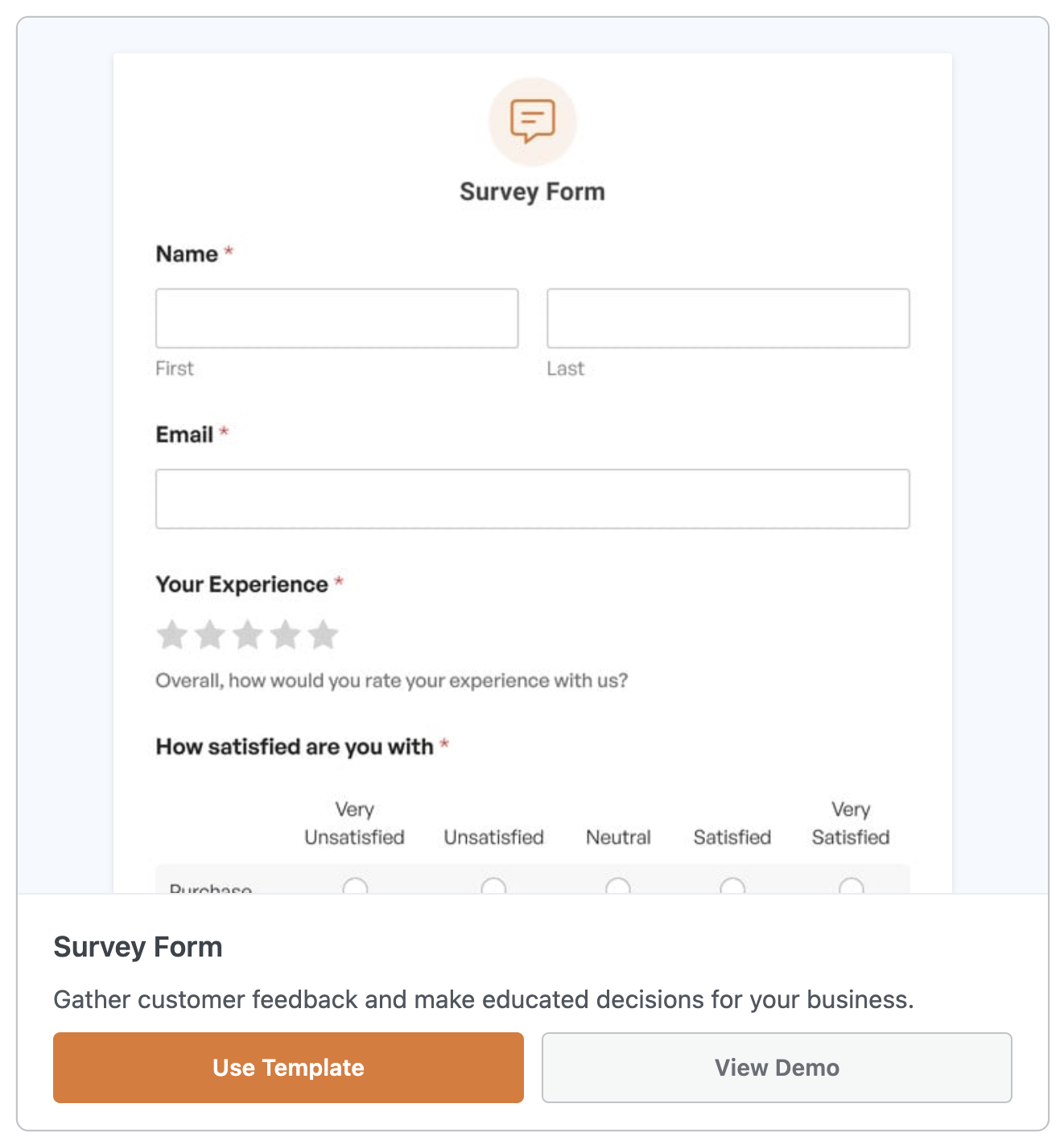
Alternatively, if you’re using the free version of WPForms, create a form with at least:
- an email field (Automator will need this field to attach the survey to a customer),
- a “Number Slider” field where users can rate your product/service on a predefined scale, and
- a “Paragraph Text” field where users can provide more detailed feedback.
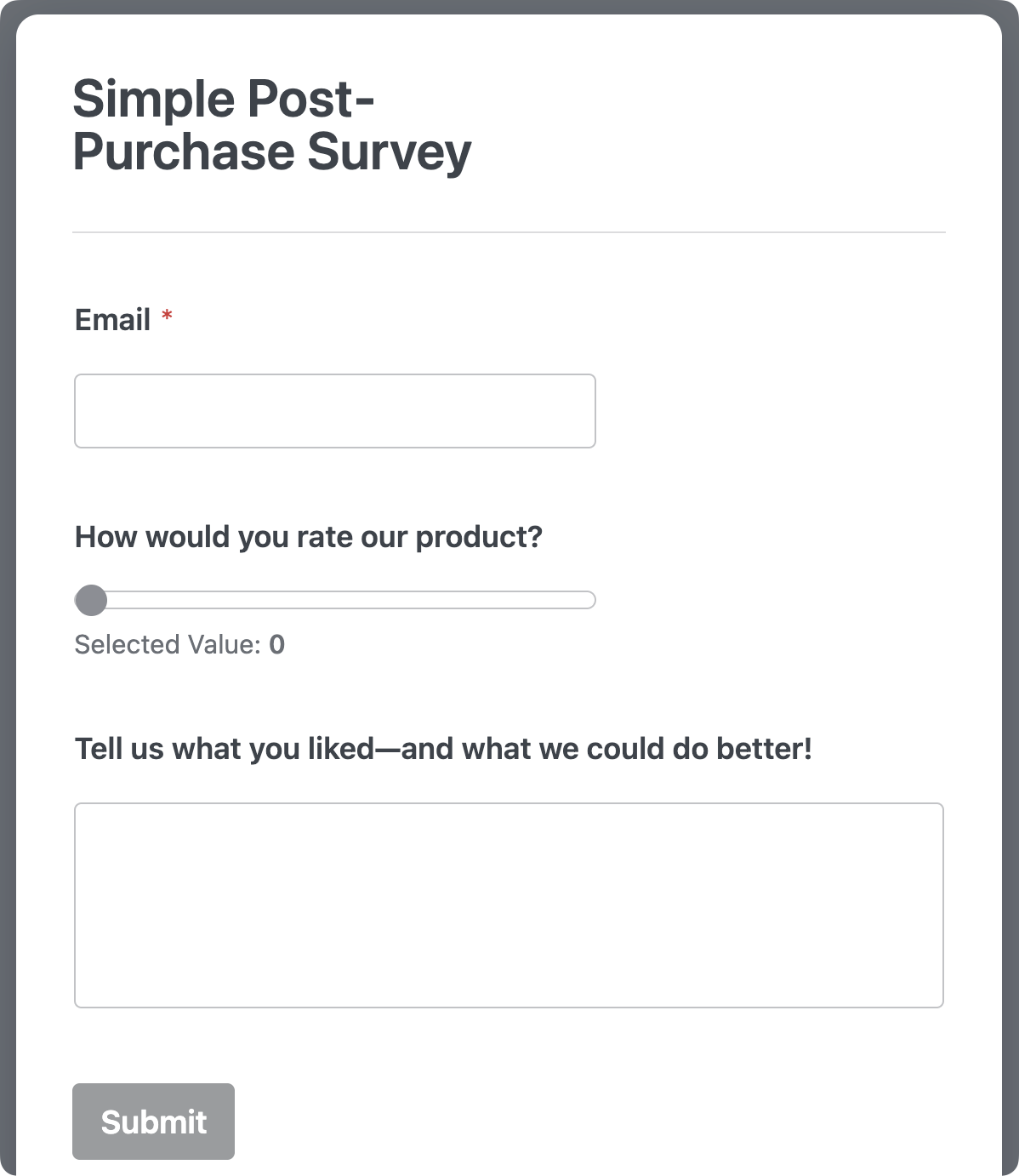
You can add more fields to give customers the ability to provide more detailed feedback. Keep in mind, however, that simple surveys have higher completion and submission rates.
Once you’re satisfied with your post-purchase survey form, click Save and exit the builder. Place the survey form on a page on your site.
Step 2: Create and Name a New Automator Recipe
From your WordPress Admin Dashboard, navigate to Automator > Add new recipe. In the modal that appears, select Logged-in users.
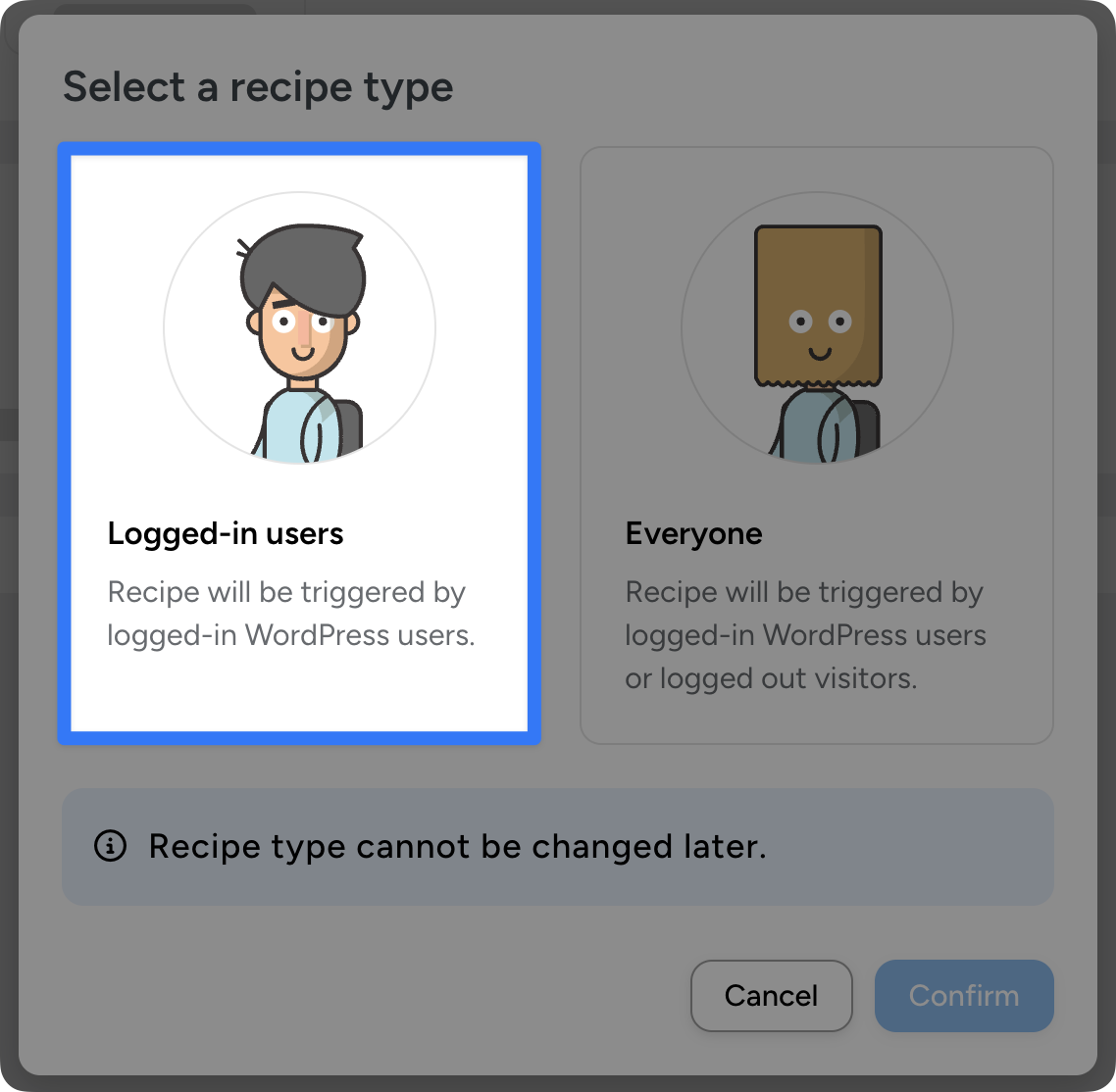
Next, give your recipe a name that makes it easy to recognize at a glance. For example, we have named this recipe “WooCommerce Post-Purchase Survey Automation”.
(Note: If you allow guest checkout, you can select the recipe type “Everyone”. Depending on the trigger that you choose, it may require Automator Pro.)
Step 3: Trigger Survey After Product Purchase
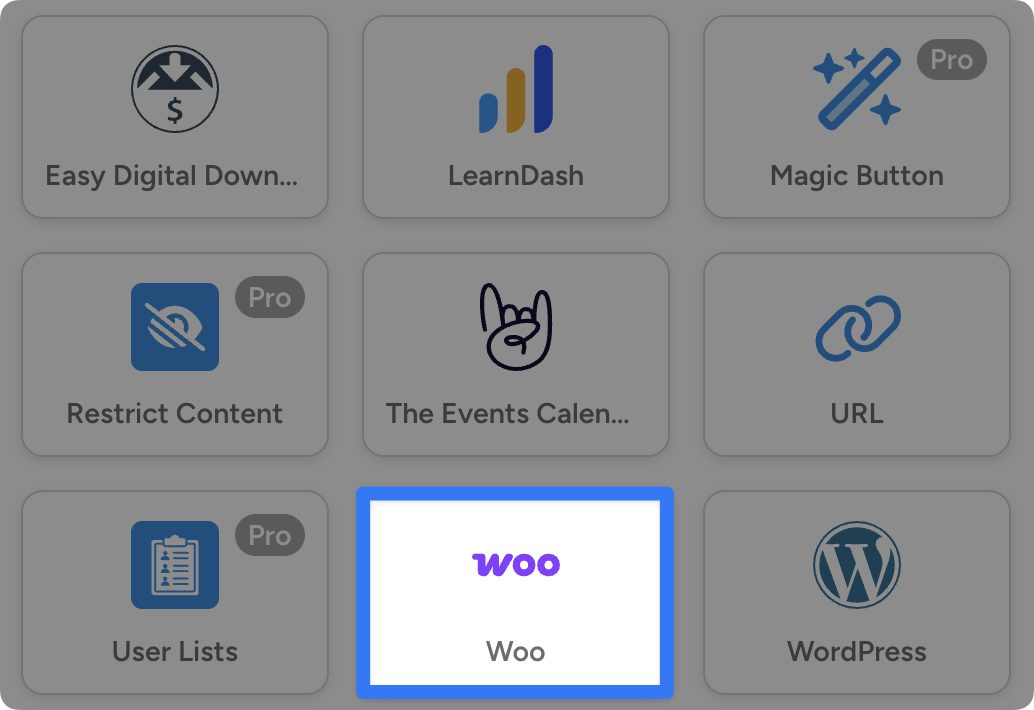
In the Trigger panel, from the menu of available integrations, select Woo.
From the dropdown list that appears, select, “A user’s order status changes to a specific status”.
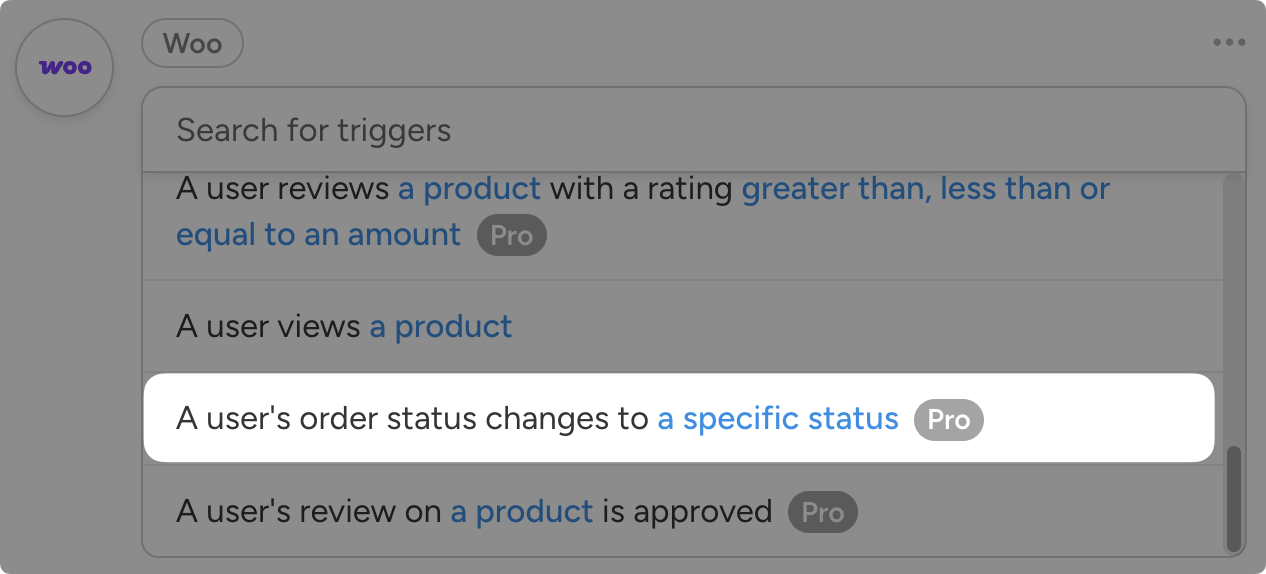
(Note: This is an Automator Pro trigger. If you are using Automator Lite, you can select the trigger, “A user purchases a product”.)
Next, Automator will prompt you to select the status. I have selected the status “Completed”. Select the order status that indicates that your customer has received their order.
Once you’re finished, click Save.
Step 4: Send an Email With Your Post-Purchase Survey Link
Next, in the Actions panel, click Add action and select Emails.
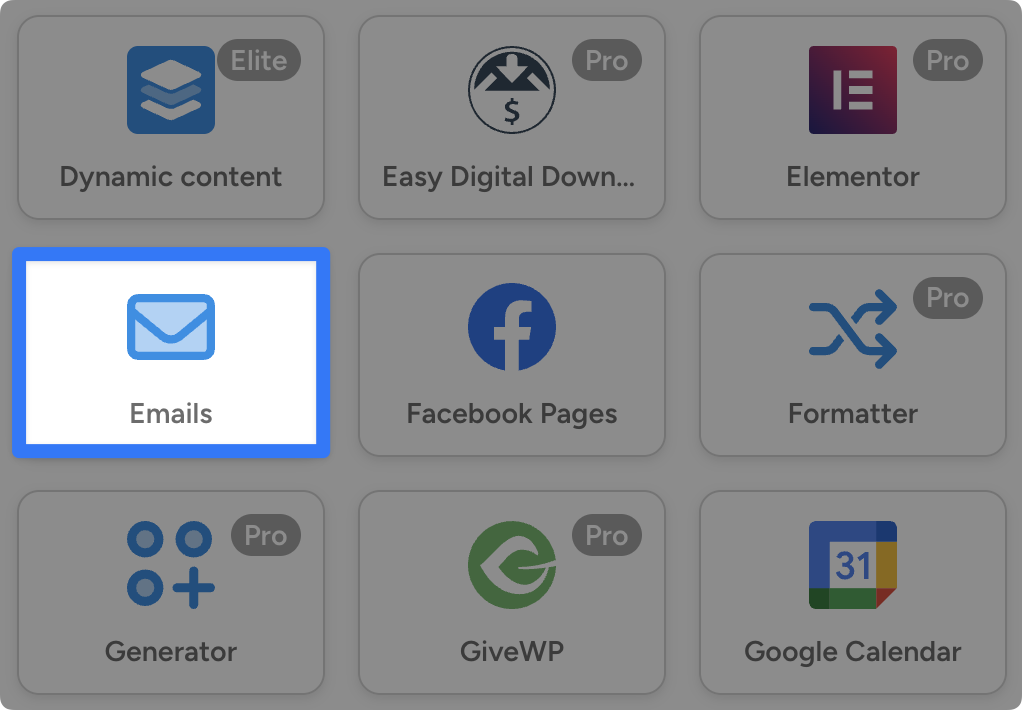
From the dropdown list, select Send an email. Automator will present you with a form to configure your email and draft your message.
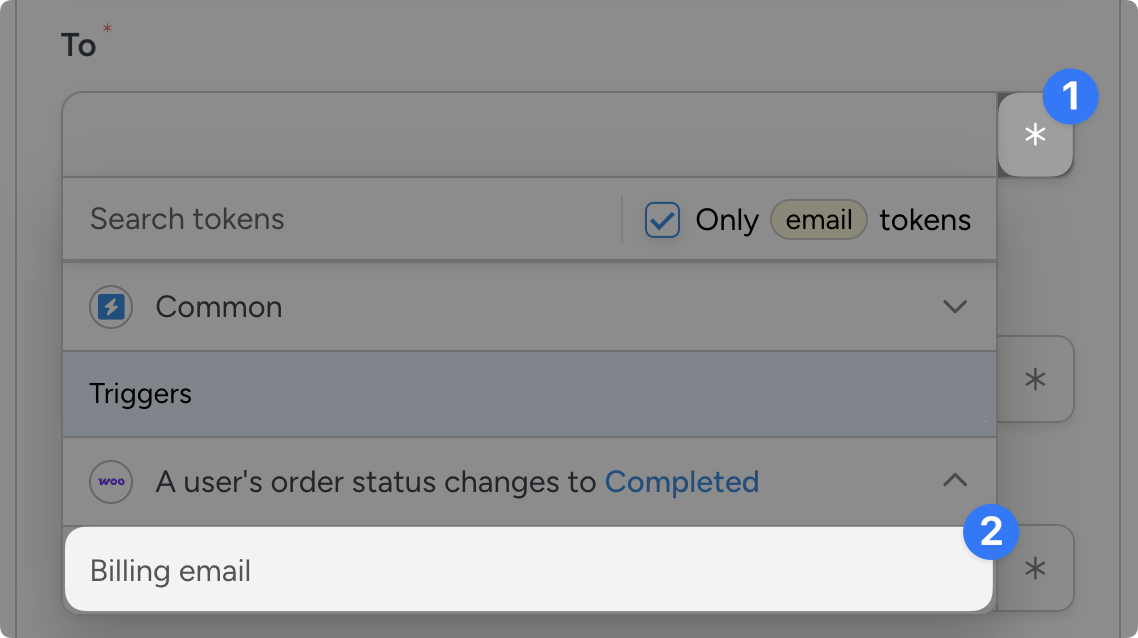
In the To field, we’re going to use a token (i.e., dynamic data from your WordPress site) to get the email to the right customer.
To use a token, click the Asterisk and select the corresponding token.
Next, draft your subject line and email body. To write a compelling email that gets engagement, here are some things you should include:
- an enthusiastic, action-oriented subject line,
- personalization using tokens to refer to the customer by name,
- a reference to the customer’s last purchase,
- a brief mention of the value that their feedback represents, and
- a clear CTA to fill out the survey.
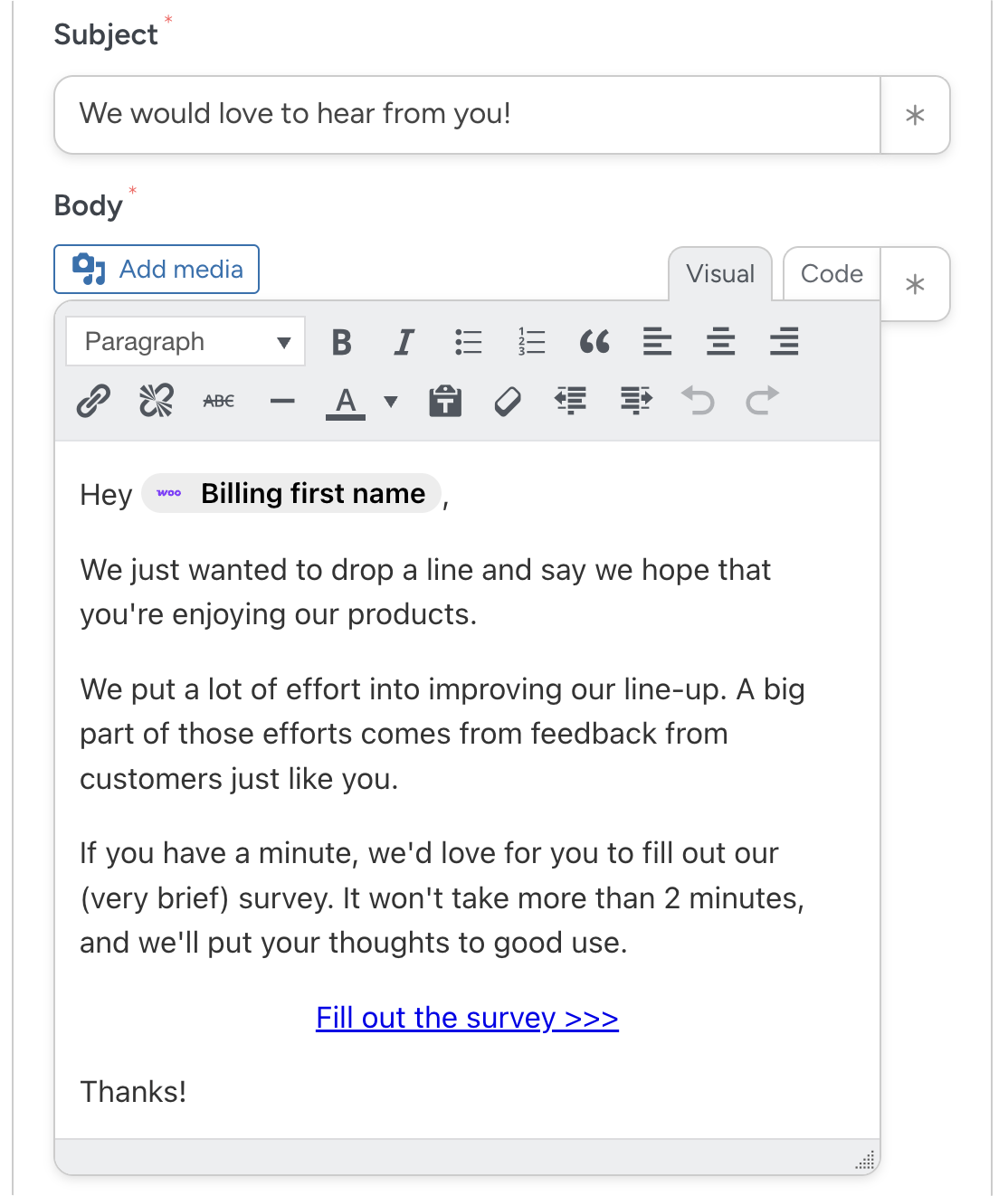
Once you’re satisfied, click Save.
Want to learn how to style your WordPress emails? Check out our nifty guide on how to create stunning WordPress emails that fit your brand >>>.
Step 5 (for Automator Pro users): Delay Your Post-Purchase Survey
Before your customers can give you honest and informed feedback, they’ll need some time with your product(s). That’s why sending a post-purchase survey along with a “delivered” or “completed” email won’t get the best response rates.
With Automator Pro, you can set a delay to your post-purchase survey email.
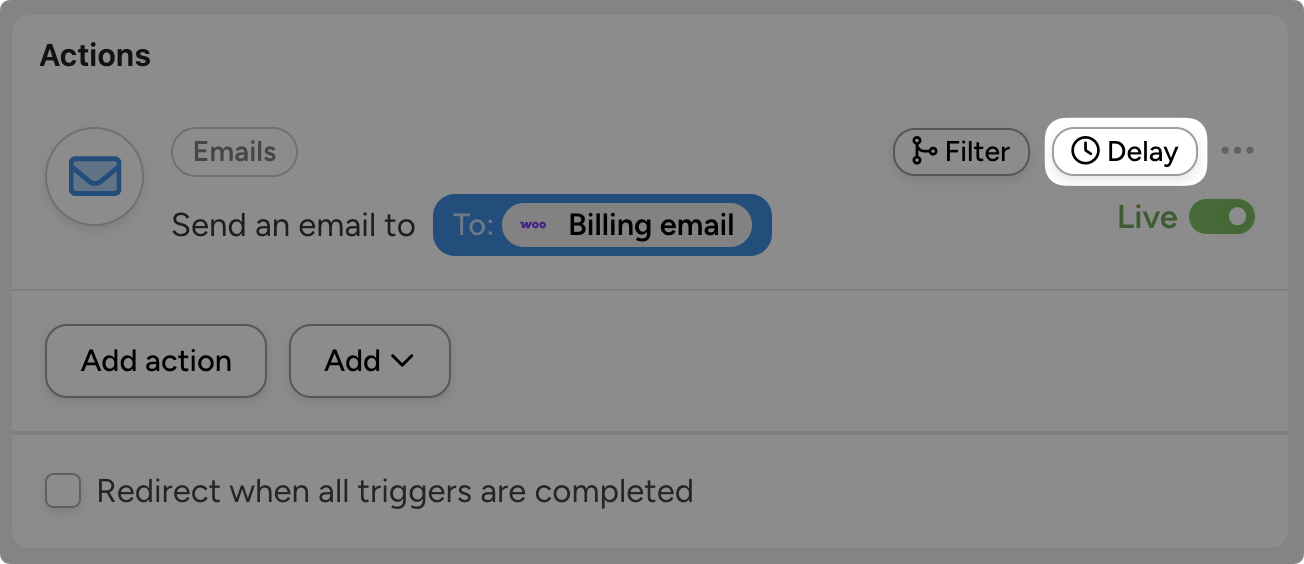
The length of your delay will depend on the nature of your business. As a general rule of thumb, you should wait between 7-30 days after purchase to request feedback from customers.
This window gives customers enough trial time while simultaneously falling within most refund and/or return windows.
Once you have decided on your delay, click Set delay.
Step 6: Automate Your Post-Purchase Surveys!
You’re just about ready to automate your post-purchase surveys. All that’s left for you to do is toggle the recipe from Draft to Live.
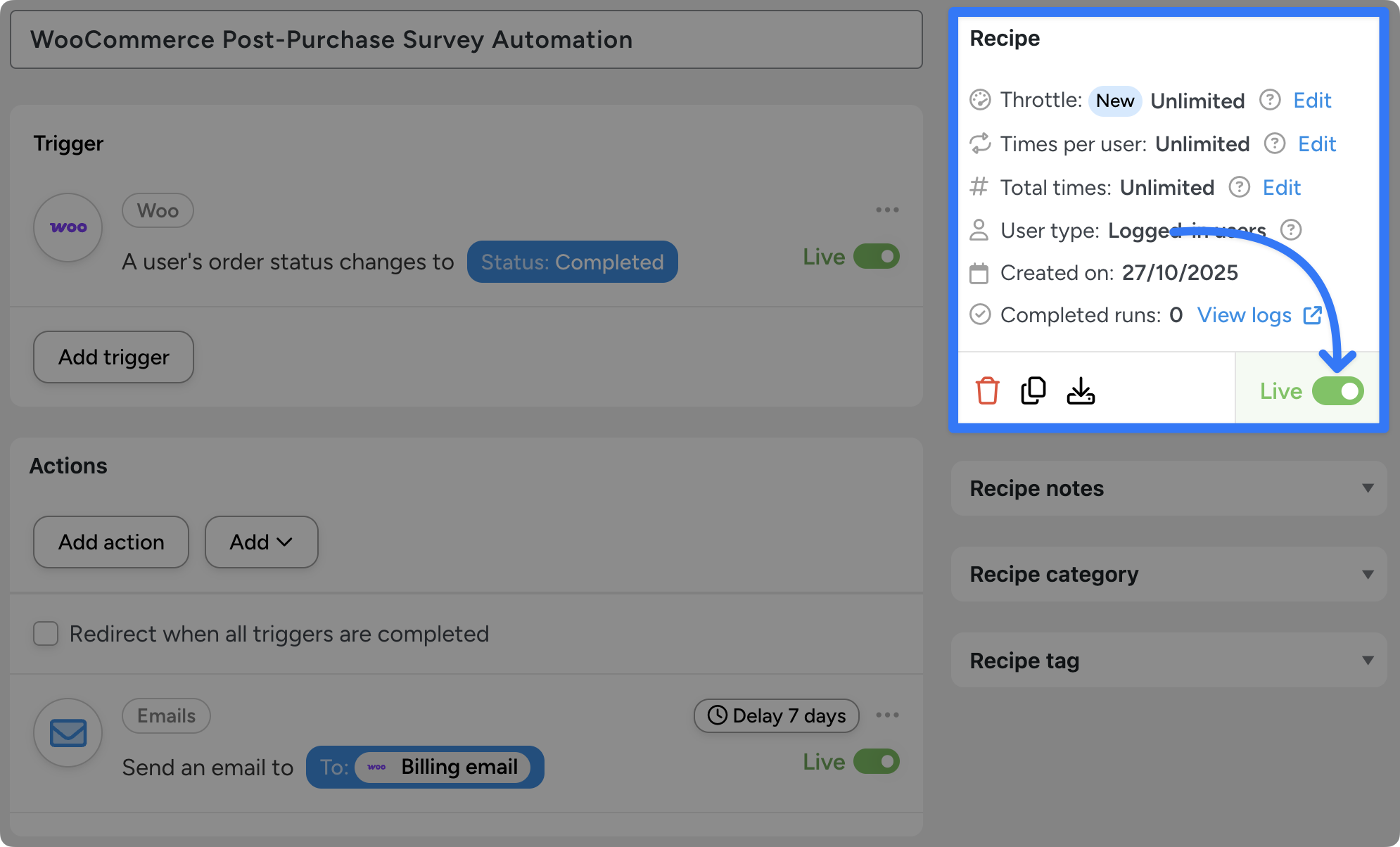
That’s it! You’re ready to start collecting post-purchase surveys, building customer loyalty, and laying the foundation for your growth.
But this was just an introduction to get you familiar with Uncanny Automator. Want to see what else you can do to build loyalty with post-purchase campaigns?
More Ways to Automate WooCommerce Post-Purchase Surveys
The Automator recipe that we created together is just the beginning. With 214 integrations and powerful features like Loops and Filters, you can create high-engagement post-purchase campaigns in just minutes.
Try out these recipes and ideas to rake in reviews, field feedback, and connect with customers.
Send WooCommerce Surveys via WhatsApp
Did you know that WhatsApp messages have a 98% clickthrough rate?
If you’re collecting phone numbers at checkout, you could be sitting on a gold mine of customer feedback. Leverage WhatsApp’s unparalleled engagement rates to garner reviews and feedback like never before.
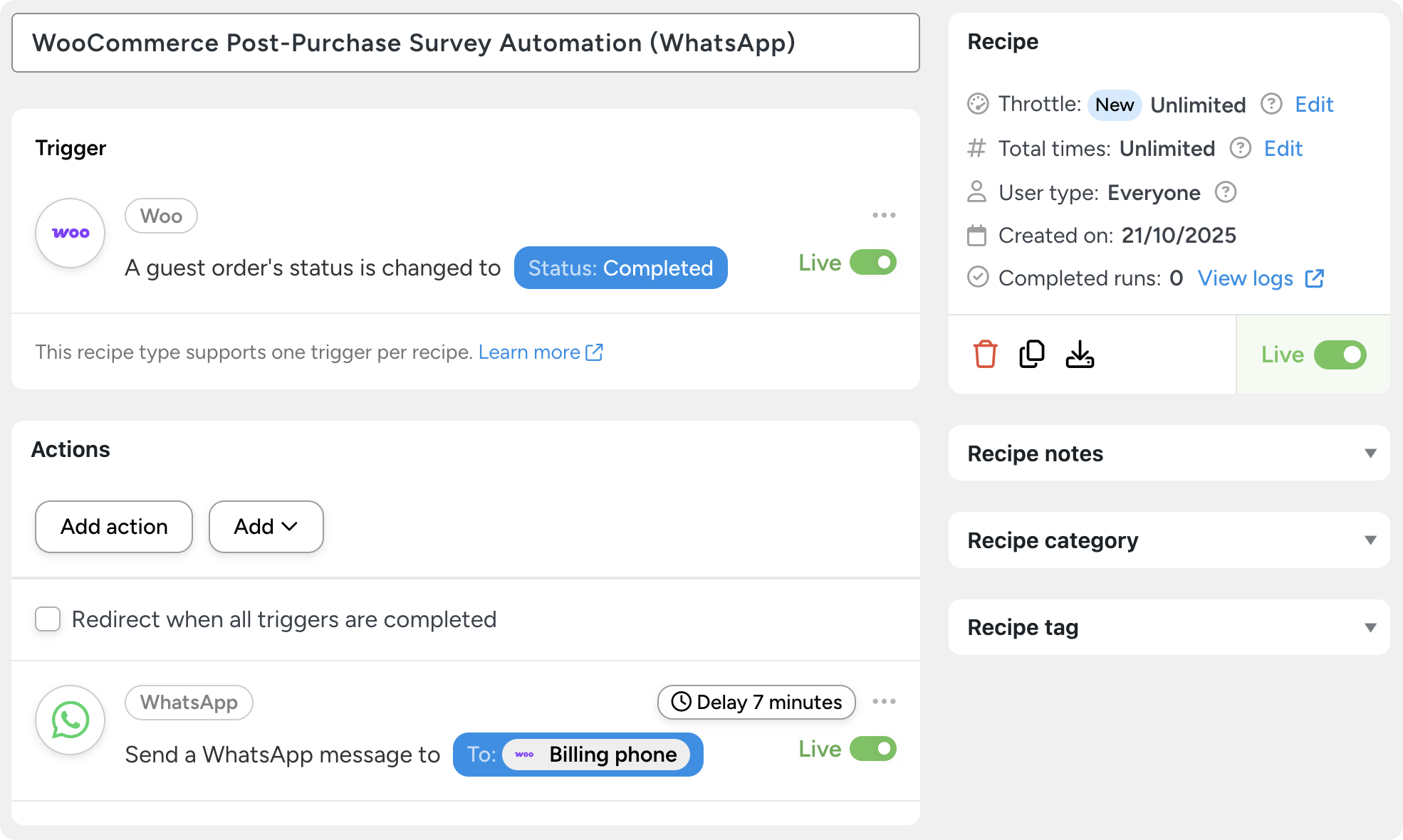
Learn how to connect WhatsApp to WooCommerce and meet your customers where they already are >>>
Reward Reviews With Coupons and Store Credit
If you’re having difficulty getting your customers to complete surveys or review your products, you can always use incentives.
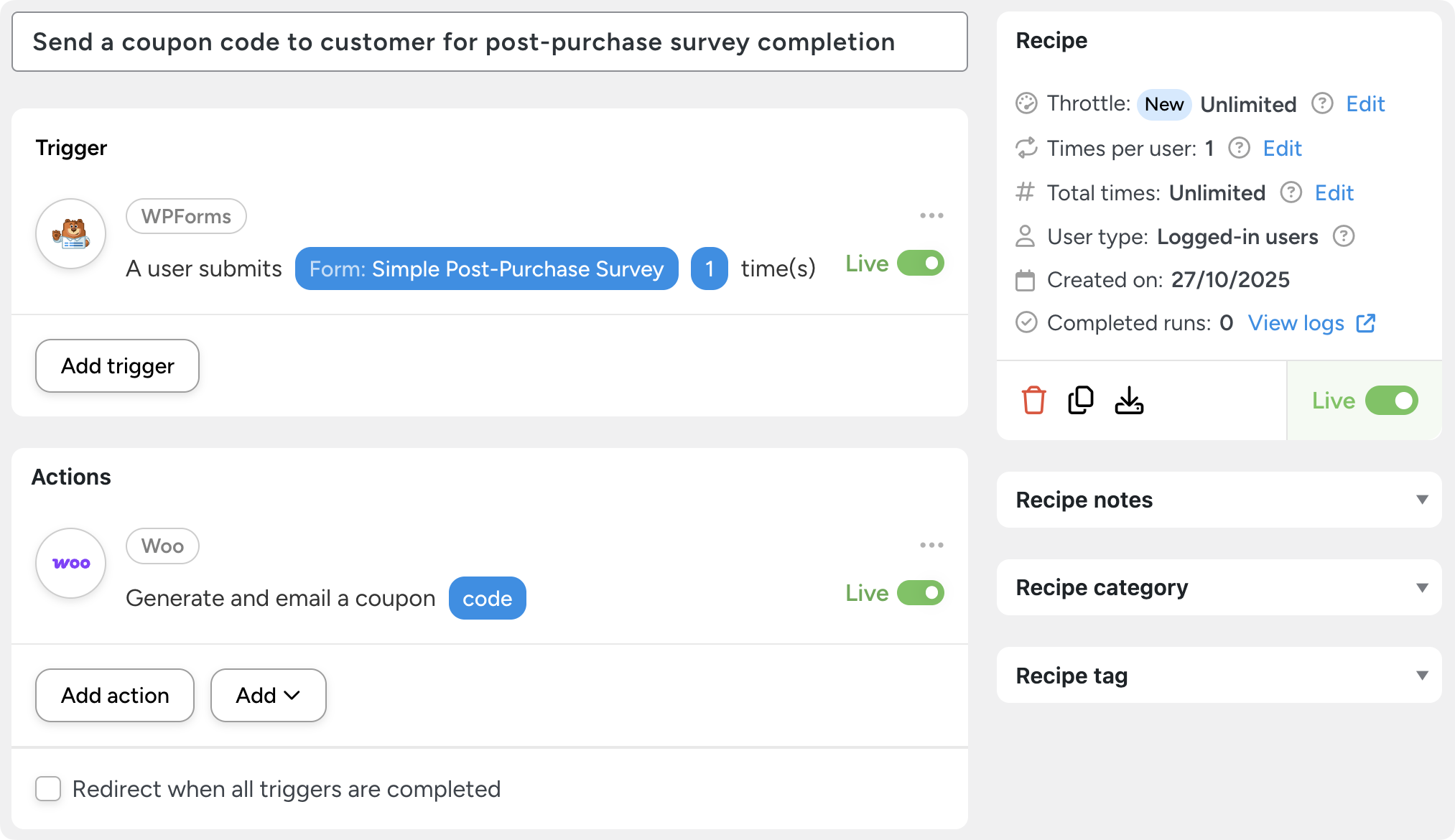
Offering your customers a coupon for completing longer surveys not only gives you valuable feedback, but it gives them a reason to shop with you again.
Similarly, customers offering your customers store credit in exchange for rave reviews or detailed feedback is a cornerstone of successful loyalty programs.
If you’re using Advanced Coupons (it’s also FREE, by the way), you can easily give your customers a little store credit to incentivize completions for longer surveys.
Best Practices for Post-Purchase Surveys
Now that you’re automating your WooCommerce post-purchase surveys, it’s time to optimize.
To get real results—responses, reviews, and repeat buyers—you’ll need to fine-tune how and when those messages go out. Over the years, we’ve learned a few tricks that separate “just another email” from “Wow, this brand actually cares”.
Conclusion
By now, you know that post-purchase surveys are more than just data collection—they’re the foundation of loyalty and long-term growth.
With Uncanny Automator, you can set these gears of growth into motion and put them on autopilot. Turning your WooCommerce post-purchase surveys into valuable insights to strengthen relationships and boost repeat sales is as easy as creating more Automator recipes.
Start small, test your timing, and keep refining. Before long, your surveys will be working quietly behind the scenes, turning every sale into an opportunity to learn, improve, and grow.
Until next time, happy automating!
Frequently Asked Questions

Related Posts





































































This Post Has 0 Comments