

Revive old WordPress posts with AI and Uncanny Automator. Learn how to reverse content decay…
How to Automate WordPress Backups with Uncanny Automator and Duplicator
Protect your site with automated WordPress backups. Pair the data-saving power of Duplicator with the no-code, hands-off simplicity of Uncanny Automator.
Regular backups aren’t just a good idea — they’re absolutely essential for any WordPress site owner who values their data.
But let’s be honest: remembering to create manual backups is tedious, and it’s easy to forget when you’re focused on running your business.
Here’s what many WordPress users don’t realize: you can automate nearly all of this stress away.
When Duplicator teams up with Uncanny Automator, something powerful happens. Your backups run themselves!
In this post, I’ll walk you through setting up specific automated backup workflows that combine these two powerful tools. You’ll learn how to create backups that happen exactly when you need them, without lifting a finger.
I’m thrilled to share this integration with the Uncanny Automator community. As part of the Duplicator team, I’ve seen firsthand how automation can save time and stress for WordPress site owners!
Why Automate Your WordPress Backups?
Nobody wants to spend their day creating backups manually. Automation puts this critical task on autopilot, freeing you to focus on your business instead of babysitting your backup schedule.
We forget things when we’re busy, stressed, or distracted. Automated backups never forget — they run exactly when they’re supposed to, creating a reliable safety net for your site.
Bad things happen at the worst possible times. Plugin conflicts, server crashes, security breaches, or accidental deletions can strike without warning. Automated backups ensure you always have a recent restore point, dramatically reducing your risk of permanent data loss.
There’s something liberating about knowing your site backs itself up. You can sleep better, update plugins with confidence, and experiment with new features knowing you’re protected.
The smartest backup strategy is proactive, not reactive. Why wait for problems to happen?
Automated workflows can create backups before potentially risky actions — like major updates or theme changes — giving you an instant rollback option.
Getting Ready: What You Need for Backup Automation
Uncanny Automator is the #1 automation plugin for WordPress, connecting different plugins and apps to create powerful workflows — no coding required.
Think of it as the conductor that orchestrates all your WordPress tools to work together seamlessly.
Duplicator has been the go-to solution for WordPress backups, migrations, and site cloning for years. It allows you to create custom backups, set up backup schedules, send data to cloud storage, and more.
Uncanny Automator can trigger Duplicator backups based on practically any WordPress event you can imagine. Using both these tools, you’ll effortlessly save copies of your data after you get form submissions, activate a theme, receive a new order, or perform another action.
For setup, make sure you:
- Install and activate both plugins. You’ll need Uncanny Automator Pro for the Duplicator integration.
- Create at least one backup with Duplicator to confirm everything works.
- If you’re using Duplicator Pro, configure your backup templates and any cloud storage connections you want to use.
- Build a simple test recipe in Uncanny Automator to get familiar with triggers and actions.
Don’t skip that last step. Understanding how Uncanny Automator recipes work will make the following examples much clearer.
How to Automate WordPress Backups with Uncanny Automator and Duplicator
Ready to put your backups on autopilot? Let’s dive into some practical automations that you can implement right away.
Start a Backup After a User Submits a Form
You’re running a client registration form, collecting detailed project applications, or processing important orders through your WordPress site. The moment someone submits critical information, you want to secure your site data immediately.
Forms often represent important business events — new leads, customer orders, membership signups. These are the moments when you want a fresh backup sitting safely in your cloud storage.
To run a backup after a form submission, you’ll need to create a new recipe in Uncanny Automator. In your WordPress admin dashboard, go to Automator, and click Add new recipe.
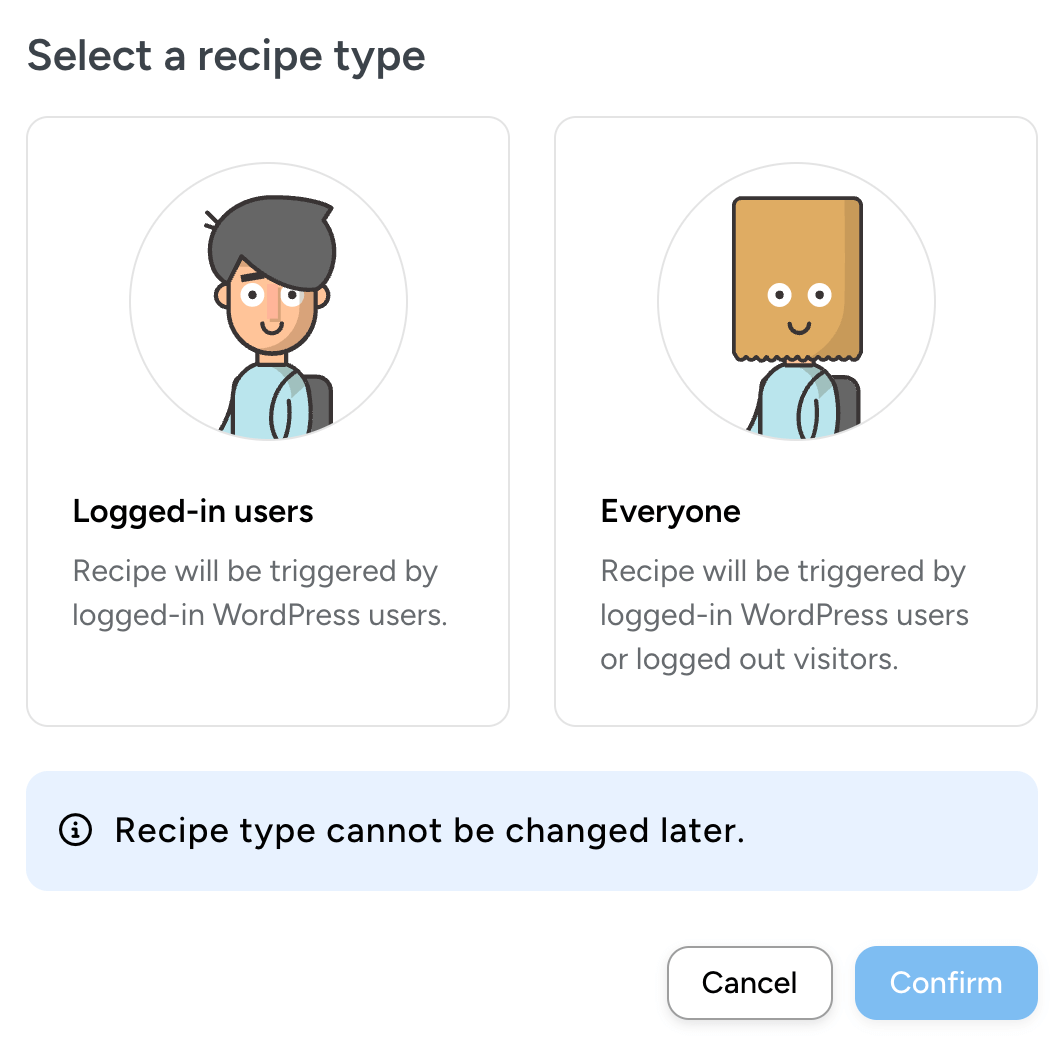
Choose whether this recipe is triggered by anyone on your site, or just logged-in users.
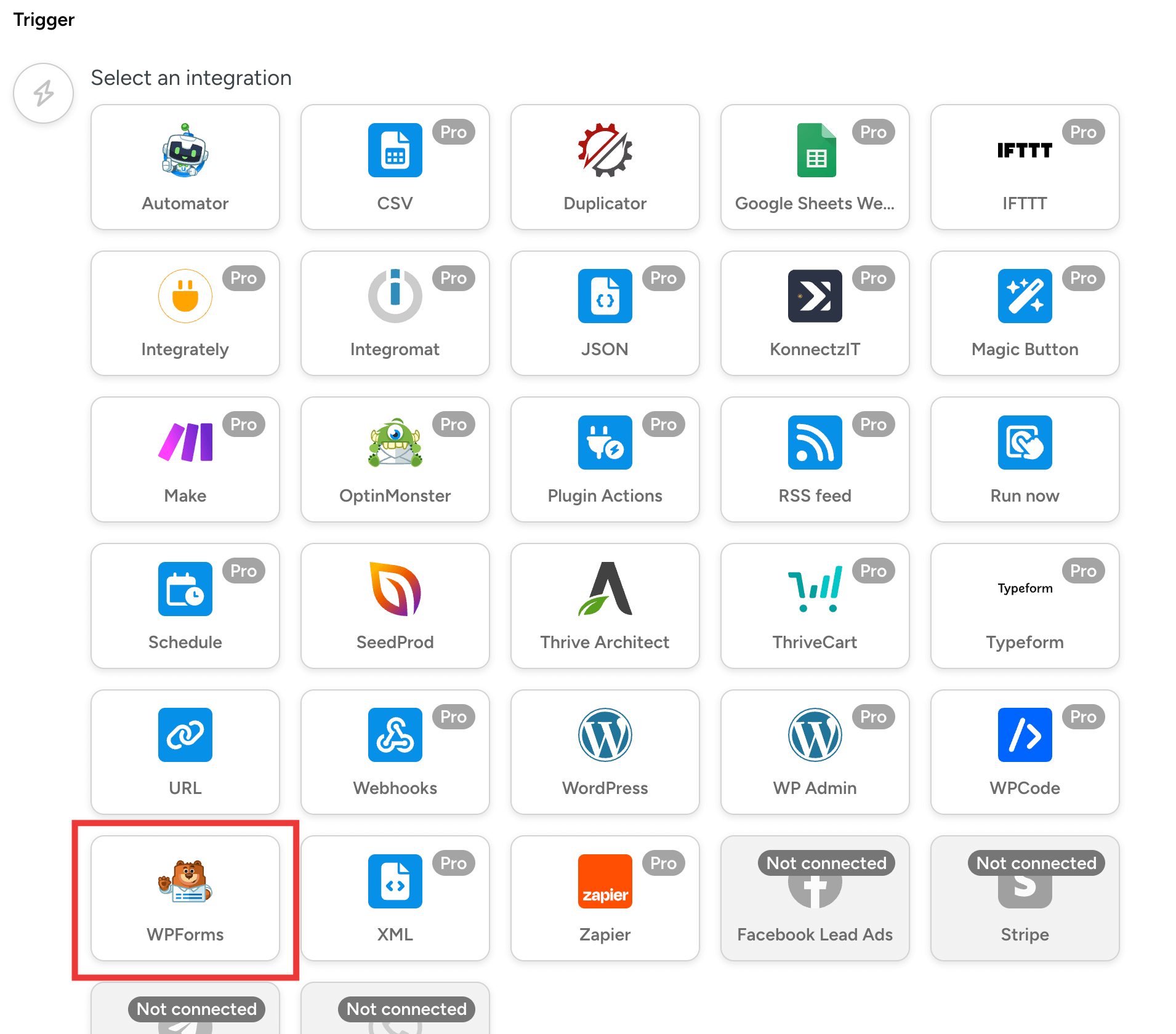
Uncanny Automator easily integrates with WordPress form builder plugins like WPForms. I built a form with WPForms, so I’ll choose that integration trigger.
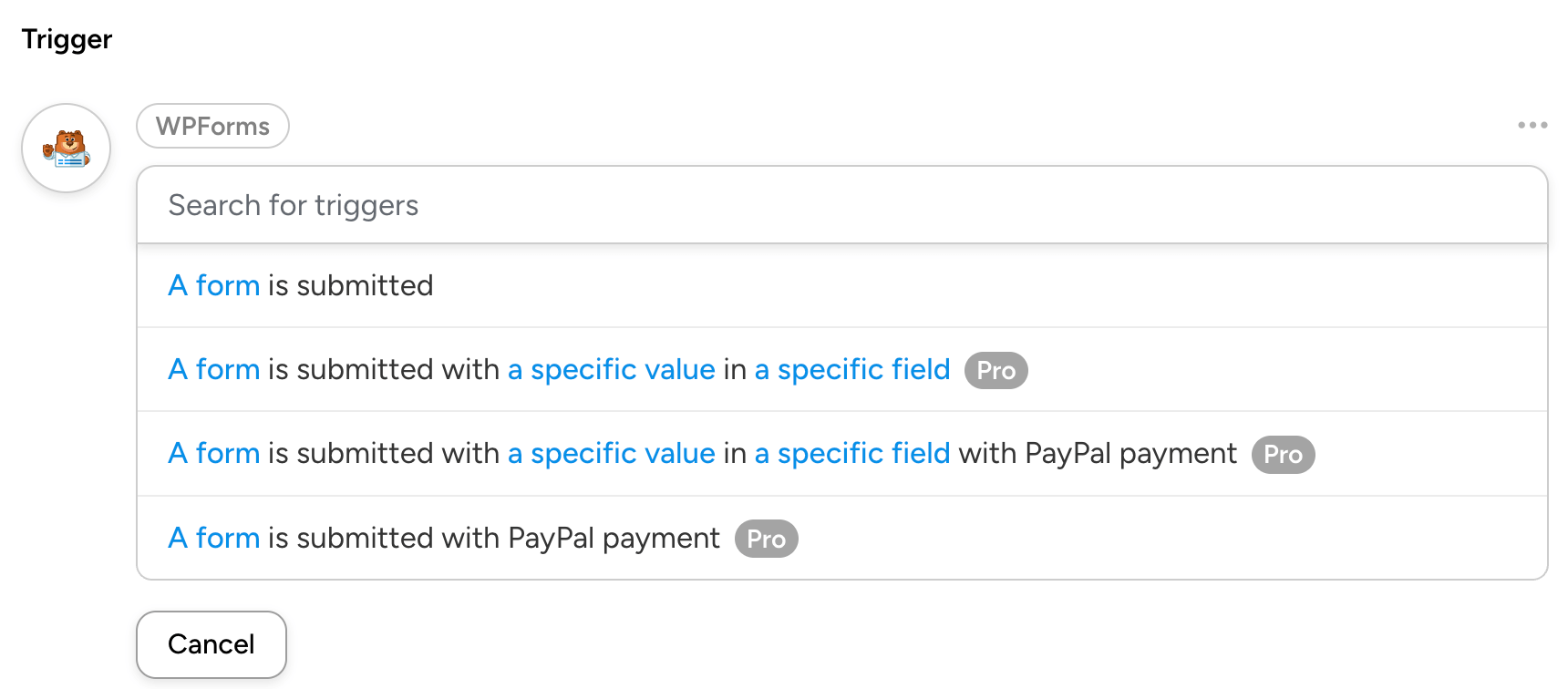
Now you’ll see new form trigger options.
You could trigger a backup when a form is submitted, or when more specific criteria are met. For example, you might only back up your site when a user makes a PayPal payment through your forms.
Then, choose which of your forms this trigger applies to and save the trigger.
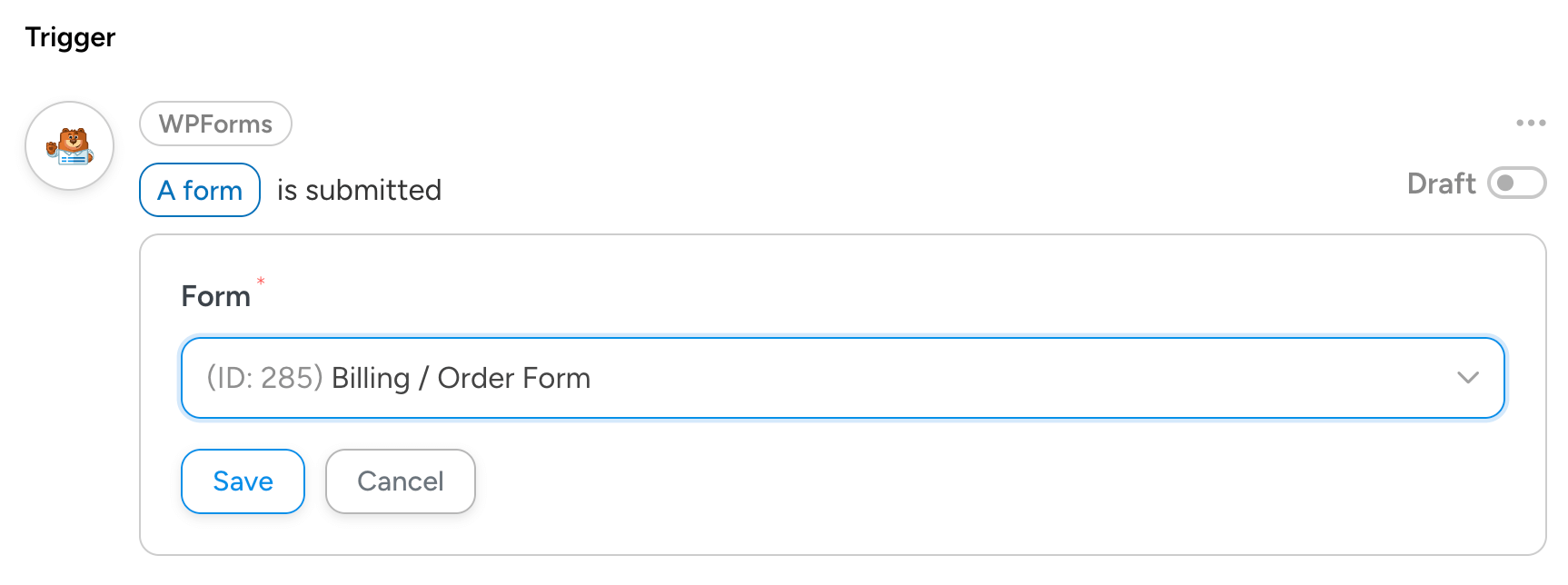
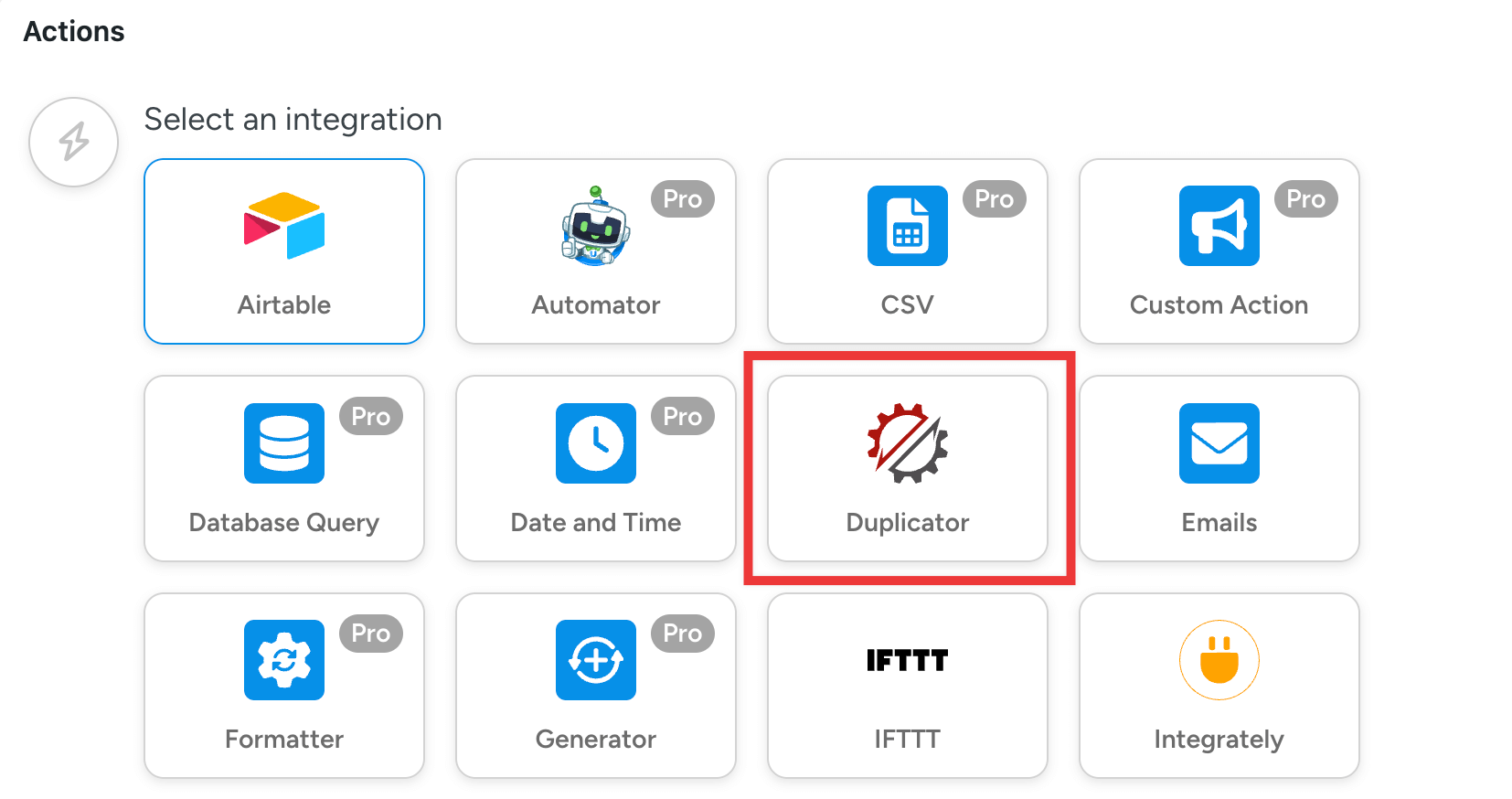
Now click on Actions and select the Duplicator integration.
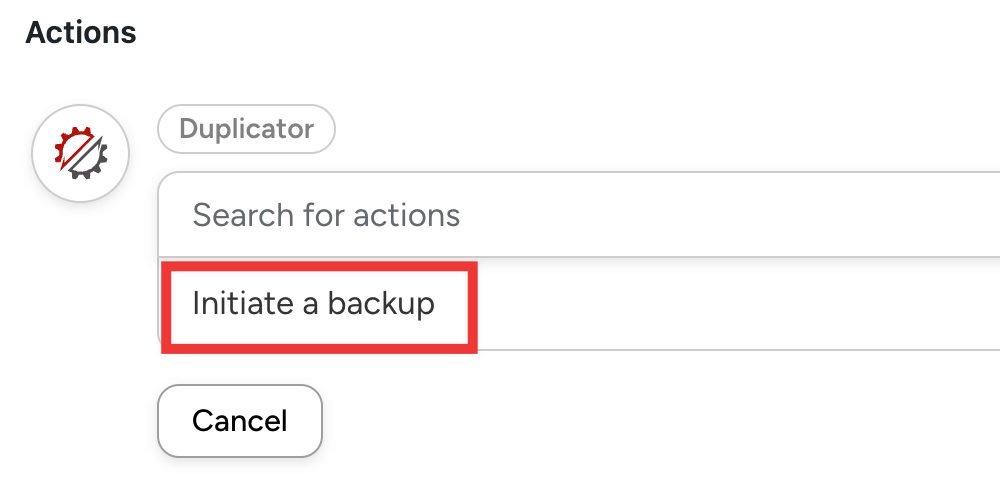
Choose the Initiate a backup action.
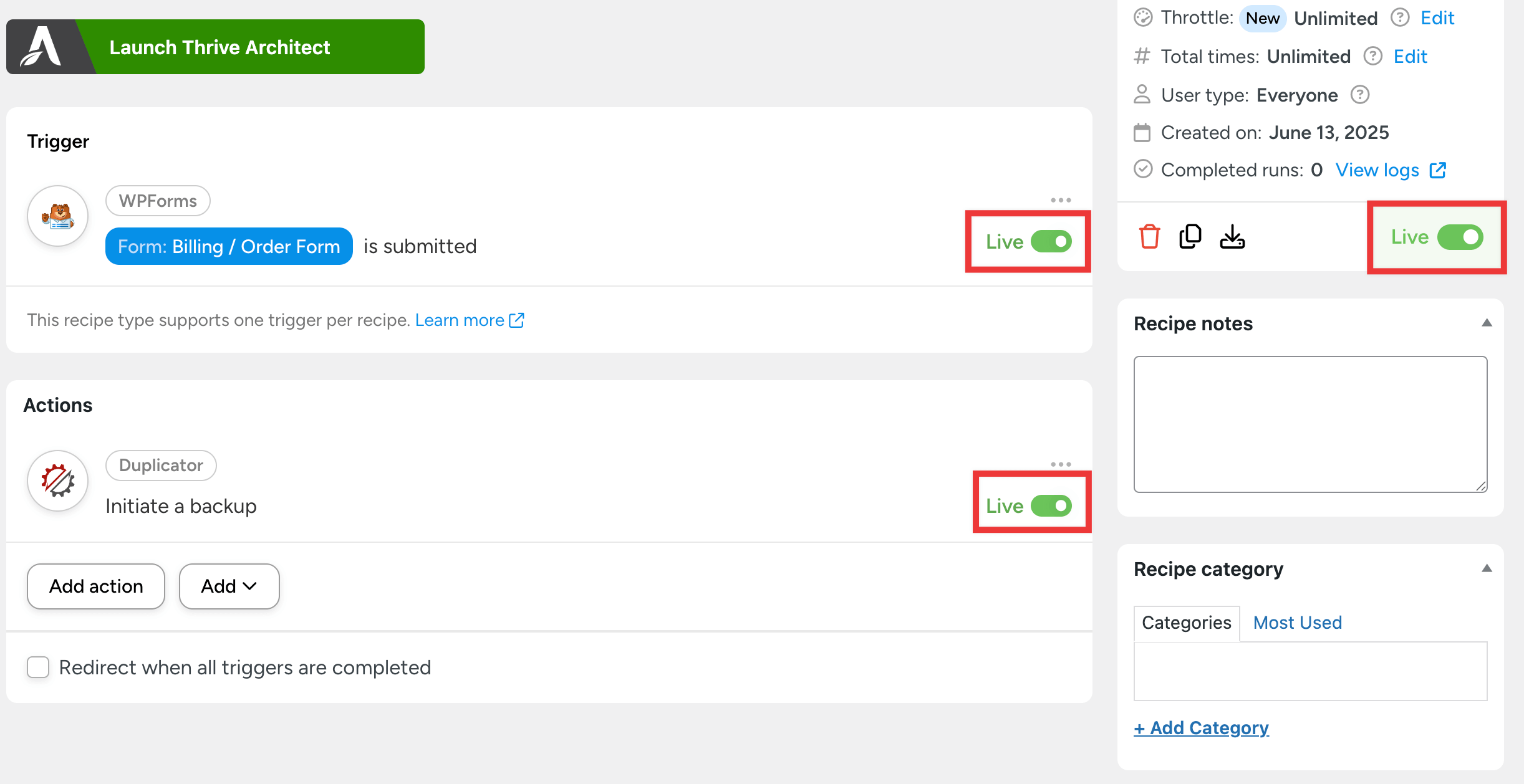
Once everything looks good, activate your recipe. From now on, every form submission will automatically create a fresh backup of your site.
Send a Slack Notification After Completed or Failed Backups
Your team needs to know when backups happen, especially if something goes wrong. Instead of logging into WordPress to check your backup status, you can get notifications delivered directly to Slack channels, email, SMS, or even Discord DMs.
This approach works particularly well for agencies managing multiple client sites or teams where several people need backup visibility.
The beauty of this setup is that you can chain actions together. A single trigger can initiate the backup AND send the notification, creating a complete workflow that keeps everyone informed.
As an example, I’ll show you how to automatically send a Slack notification for failed backups. First, create a new recipe and choose the Duplicator trigger A backup completes with a specific status.
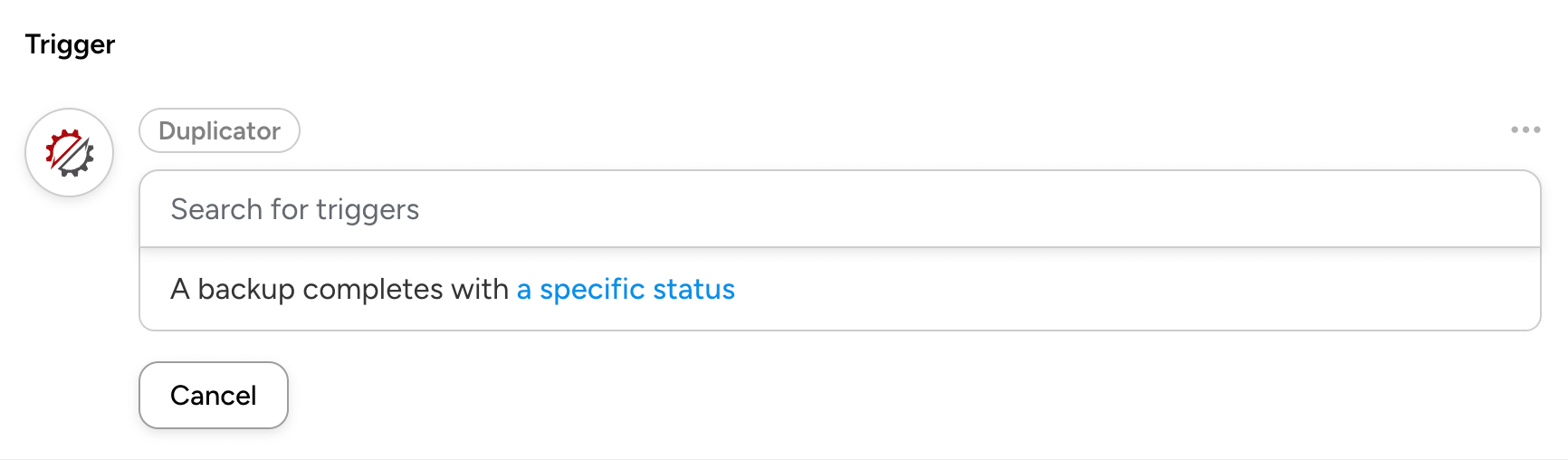
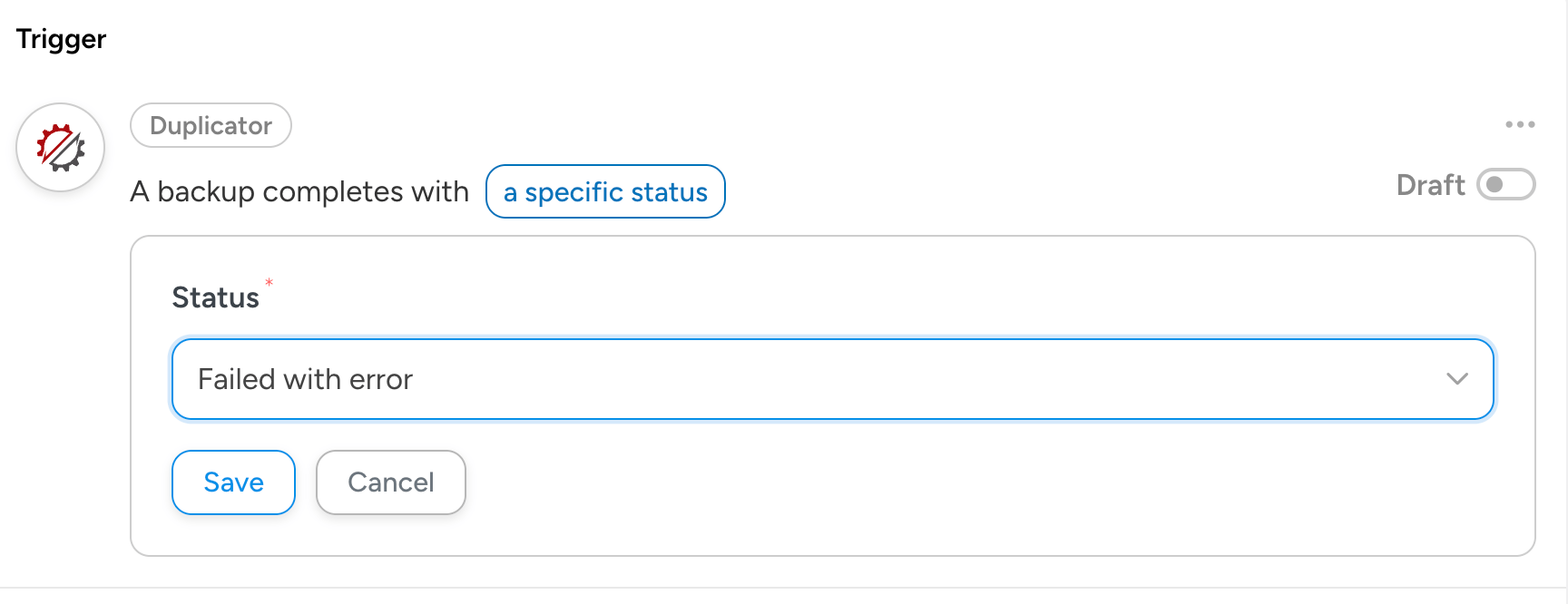
Decide if you want notifications for completed or failed backups. You can set up individual recipes for each trigger if you’d like.
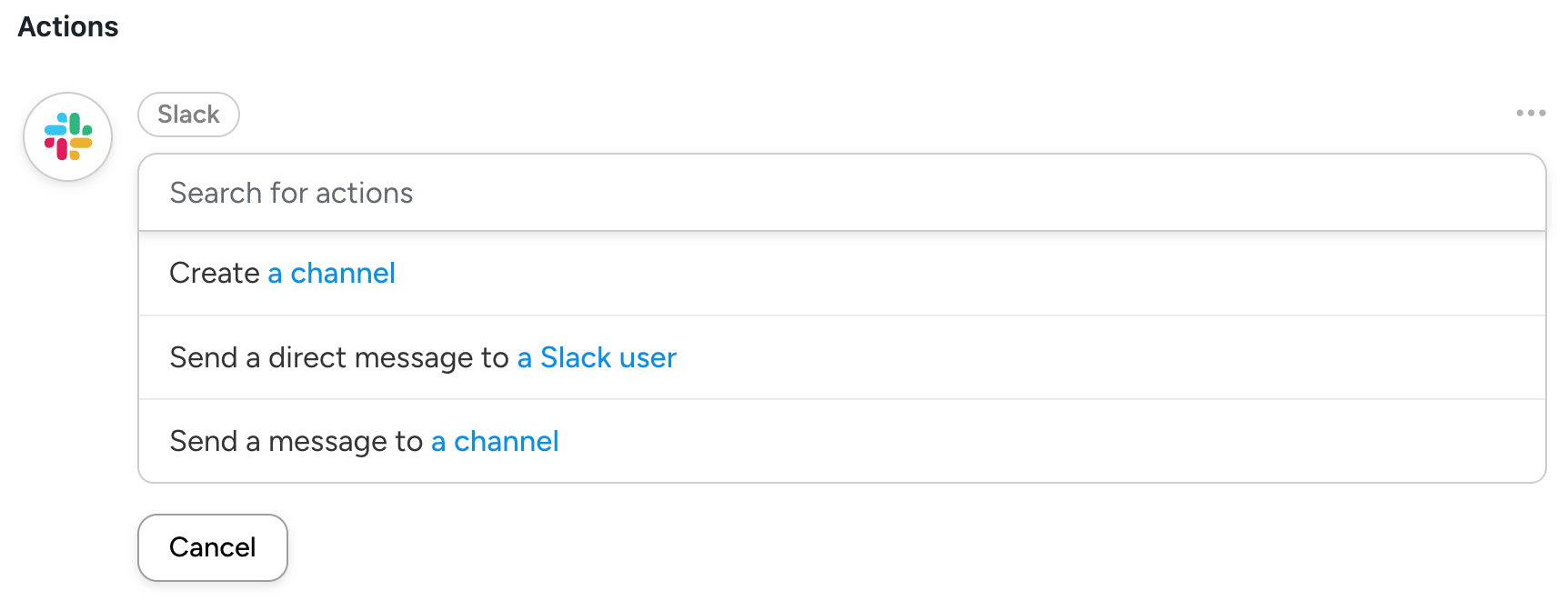
Next, add a new action and choose the Slack integration. You can message a specific user, create a channel, or send a message to a channel.
For this tutorial, I’m sending backup failure messages to a specific user.
Choose the Slack user you want to receive backup status messages. In the Message section, click on the * icon and expand the trigger dropdown. Select Status.
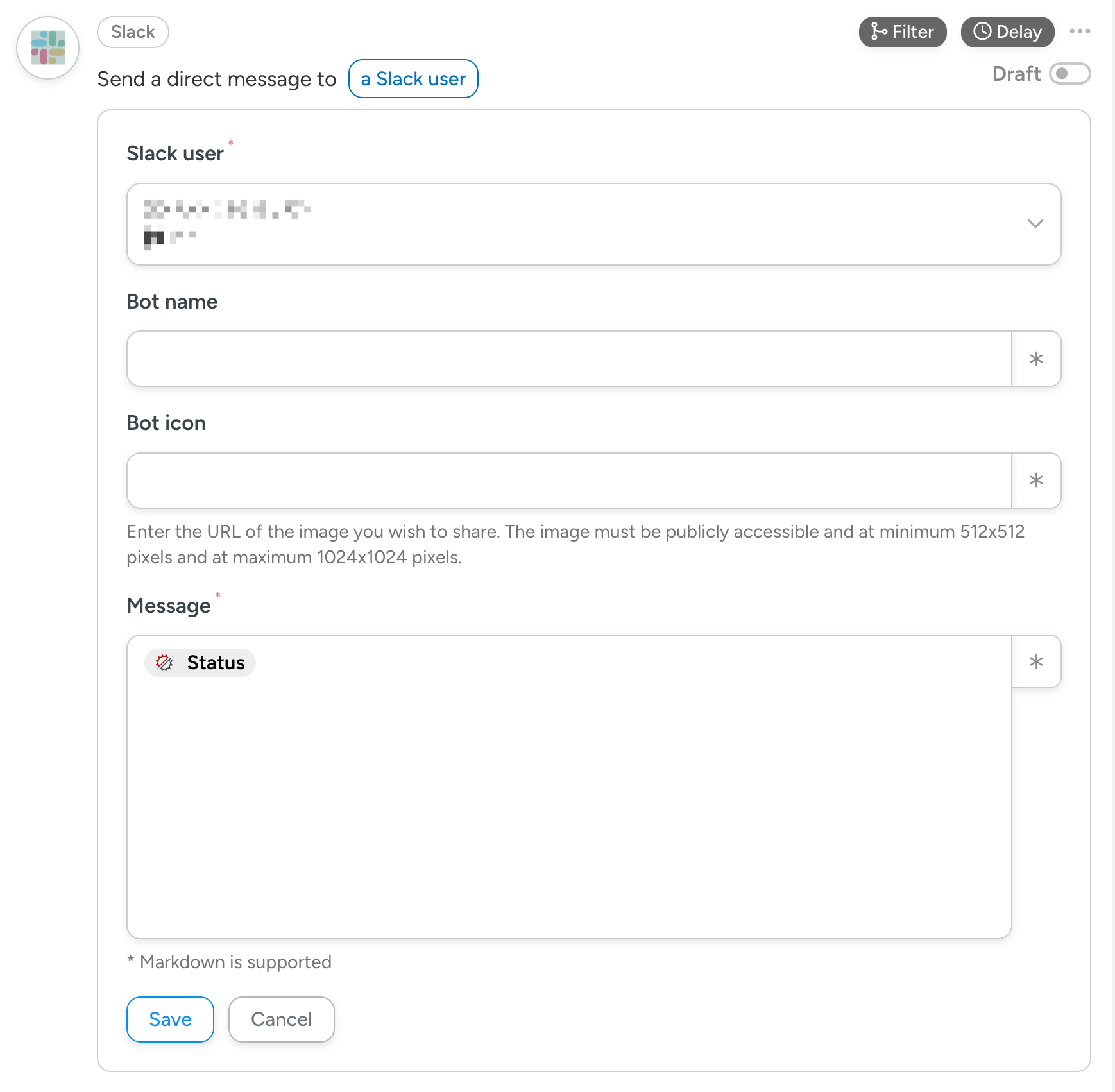
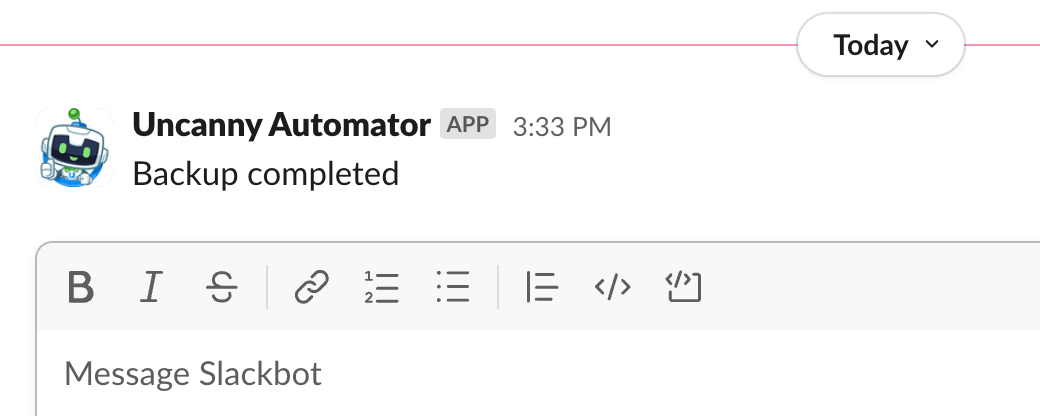
Save the action and make it live. Now you’ll receive Slack notifications for backup statuses!
Back Up New Customer Information
Your online store contains valuable customer and sales data that’s constantly growing. Every completed purchase adds new information to your database like customer details, payment records, and licensing information.
Losing this data can be devastating for your business. Automated backups after each sale ensure you never lose critical revenue data.
To do this, you can use your e-commerce plugin to activate a trigger. I’ll use Easy Digital Downloads, but this applies to WooCommmerce, MemberPress, and other plugins.
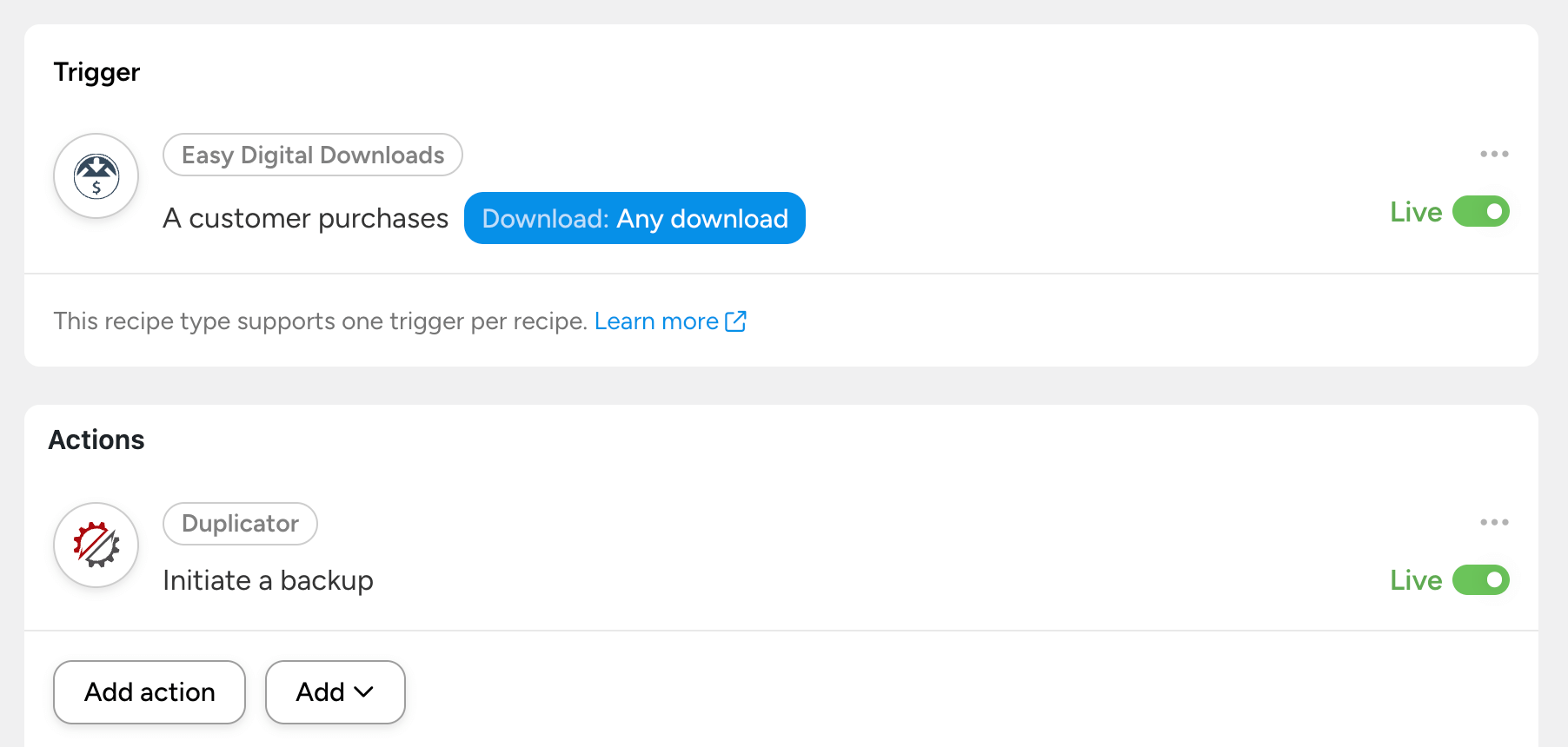
Add a backup action for the e-commerce trigger. Save and activate the automation.
For stores with high transaction volumes, you might only create backup triggers for high-value purchases. This way, you won’t slow down your server with constant backups.
This automation ensures your growing customer and sales database is protected automatically, letting you focus on growing your business instead of worrying about data loss.
Bonus Tips for Your Automated Backups
Duplicator Pro includes its own built-in scheduled backup system that works independently of these event-triggered automations. Consider setting up regular daily or weekly backups, alongside event-based backups.
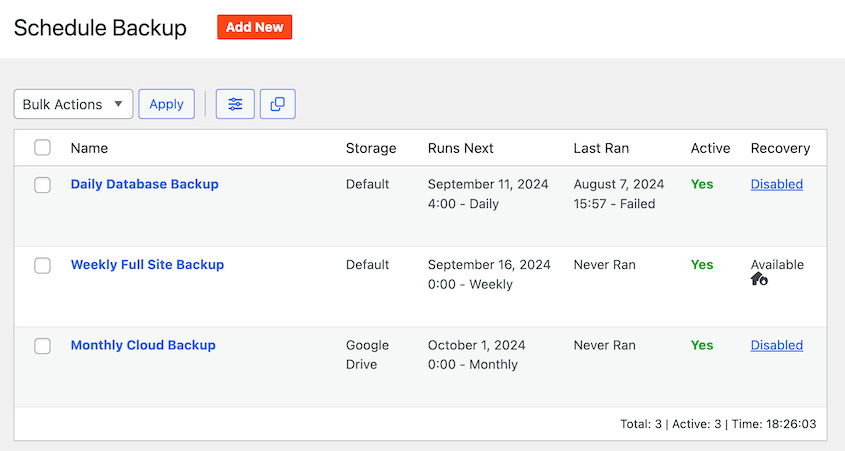
This gives you comprehensive coverage — consistent time-based protection plus smart event-driven backups when important things happen on your site.
I’d also recommend testing your backups. Set aside time regularly to test restoring your automated backups. Make sure they actually work and contain everything you expect.
Automated backups can accumulate quickly, especially if you have multiple triggers running. Keep an eye on your storage space (both local and cloud) and configure Duplicator’s automatic cleanup features to manage older backups intelligently.

Frequently Asked Questions (FAQs)
Final Thoughts
With Uncanny Automator and Duplicator, you’ll create a backup system that thinks ahead, responds to your site’s activity, and removes human error from your data protection strategy.
Instead of backups being a chore you have to remember, they become an intelligent response system that protects your site exactly when protection matters most.
I encourage you to try out Duplicator Pro to better manage your site’s backups and migrations. It supports automatic backups, one-click restores, drag-and-drop migrations, and other helpful data protection features!
I’d love to hear about your own automation ideas or answer any questions you have about these workflows. Drop a comment below and let’s discuss how you’re planning to automate your backup strategy.

Related Posts





































































This Post Has 0 Comments