

Automating your WooCommerce win-back campaigns only takes a few minutes, and it can drastically improve…
How to Automatically Reverse WordPress Content Decay
Revive old WordPress posts with AI and Uncanny Automator. Learn how to reverse content decay automatically with smart workflows and SEO updates.
TLDR? Get the highlights:
Give your old WordPress content new life using automated workflows powered by the most dynamic AI platforms.
- Content decay occurs when your posts lose ranking due to changing search intent, new content from competitors, and/or lost backlinks, amongst other causes.
- Monitor content decay with AIOSEO and Google Search Console.
- Content automation workflows keep your content fresh and up-to-date with minimal intervention, allowing you to manage content at scale.
- Create automated editorial workflows with Uncanny Automator and AI platforms like Perplexity, Grok, OpenAI, Anthropic, and more to reverse content decay.
Every piece of content has its moment in the sun. You write it, publish it, promote it, and—if you’re lucky—it thrives. But even the best-performing content eventually starts to fade. Traffic slows, backlinks dry up, and once-active posts sink into the graveyard of Google’s SERPs.
That slow decline has a name: content decay. But here’s the good news—your content doesn’t have to stay buried.
With content automation (and a little help from AI), you can breathe new life into your long-since forgotten posts.
In this article, I’ll share strategies with you for reversing content decay. I’ll show you how to create powerful automations that make updating, refreshing, and resurrecting old content simple and easy.
So grab your digital defibrillator—it’s time to bring your content back from the dead!
What Is Content Decay (and Why It Happens)
The internet, as they say, is forever. Once a piece of content—a new blog post, a thread on X, a YouTube video—is out there, it will live on forever. Kind of.
Even if your content is immortal, it still has a lifecycle.
When you first publish an article, it’s fresh, relevant, and full of energy. You might say that it’s “young”. Over time, however, search trends evolve, statistics change, and competitors create newer content. Your “new” post, on the other hand, has remained frozen in time. In other words, your once-young content has gotten a little… well, old.
That’s called content decay: the gradual decline in organic search traffic, rankings, and engagement for posts that once performed well.
And it happens for a few key reasons:
- Outdated information: Statistics, screenshots, and examples that were once cutting-edge eventually grow stale. Readers and search engines alike can sense when a post’s data has expired, and that loss of freshness makes your content less credible and less clickable.
- Newer posts: The internet never stands still. Much like you, your competitors are constantly publishing newer, more comprehensive content on the same topics. Like yesterday’s news, when search engines see a newer content covering similar ground, your post can quickly lose relevance.
- Changes to search algorithms and technology: Google’s algorithms are evolving faster than ever. Core updates can rewrite ranking priorities overnight, favoring structured data, new schema types, or more recent content formats like videos and FAQs. If your post isn’t keeping pace, it can slip into digital obsolescence.
- Lost backlinks: Backlinks are a lifeline for your content’s authority and popularity. When linking pages disappear, update their URLs, or get deindexed, your article loses valuable “link equity”. The result? A slow but steady decline in rankings.
- Shifting search intent: What readers wanted two years ago might not match what they’re searching for today. A “how-to” post that once satisfied user curiosity may now need to answer transactional or AI-assisted queries.
How to Monitor Decaying Content in WordPress
For WordPress users, there are tons of tools for monitoring and tracking your content’s performance over time. Personally, however, I’m partial to AIOSEO.

AIOSEO’s Search Statistics is the primary tool that I use for tracking content decay and keyword performance.
If you want a full breakdown of how to use AIOSEO for monitoring content performance, check out this detailed guide from WPBeginner.
What Makes Content Automation a No-Brainer?
Now that you know what content decay is, what causes it, and how to track it, it’s time to find a solution. Unlike for actual living things, there is a secret elixir to creating immortal content: content automation.
You can think of automation as your content’s life support system—monitoring vital signs and delivering nourishment while you focus on new ideas.
Here’s why content automation is essential for reversing content decay:
- Saves time (and sanity): Instead of manually checking hundreds of posts, use automation to flag underperforming and old content that could use a refresh.
- Keep evergreen content SEO-friendly: Combining automation with AI models like Anthropic’s Claude or OpenAI’s ChatGPT gives you the ability to update content in seconds. Get SEO suggestions, rewritten sections, and newly optimized titles, headings, and meta descriptions.
- Boosts traffic and engagement: By automating reposts and social shares, you give revived content a second life—reintroducing it to audiences who may have missed it the first time.
- Proactive content updates: With automation, you don’t need to wait for content to flatline before you act. Use regularly scheduled automations to trigger updates to old content before it drops off SERPs into the oblivion of the internet.
- Scales effortlessly: Whether you manage ten posts or a thousand, automation ensures that every piece of content gets the attention it needs to stay alive.
In the next section, I’m going to walk you through actually setting up content automations that reverse content decay with minimal effort on your part.
Step-by-Step: Reverse WordPress Content Decay with Automator + AI
To create content automation workflows that reverse decay, I use Uncanny Automator and its AI integrations.

If you’re not already familiar with Uncanny Automator, you can think of it like the Zapier of WordPress. Using simple combinations of triggers and actions, Automator connects your favorite apps and plugins to execute workflows.
When it comes to content automation, Automator stands out for a few key reasons:
- Social media integrations: Automator connects your WordPress site to your various social media platforms, from Facebook and WhatsApp to Discord and LinkedIn. This means you can autopost from WordPress directly to social media without ever having to leave your WordPress dashboard.
- Multiple AI integrations: You get to choose which AI platform you want for each task. Perhaps you prefer to stick with the all-rounder ChatGPT. Or, maybe you’d rather research with Perplexity, generate social posts with Grok, and write long-form content with Claude.
- Post and page meta: Automator is fully integrated with your WordPress site. This means that you can update your post’s content just as easily as you can automatically update important metadata such as product descriptions, meta descriptions, tags and categories, featured images, etc.
- Scheduler: If you want your content updates to run like clockwork without your intervention, set scheduled automations. Whether you want to update content every day, once a week, or once a year, set it and forget it.
- No per-automation fees: Unlike other automation and integration tools, Automator doesn’t charge per automation fees. In other words, the more you automate, the more you save.
In the next steps, I’m going to be using Automator Pro features such as the Schedule integration. To optimize your content automations, I highly recommend getting an Automator Pro license >>>.
However, if you’re not ready to go Pro just yet, you can still get Automator Lite for FREE. Simply install and activate Automator Lite on your WordPress site. And don’t forget to register your account to receive some complimentary app credits that you can use with Automator’s AI integrations.
Once you have installed and activated Uncanny Automator on your WordPress site, it’s time to create your first recipe (i.e., combination of triggers and actions).
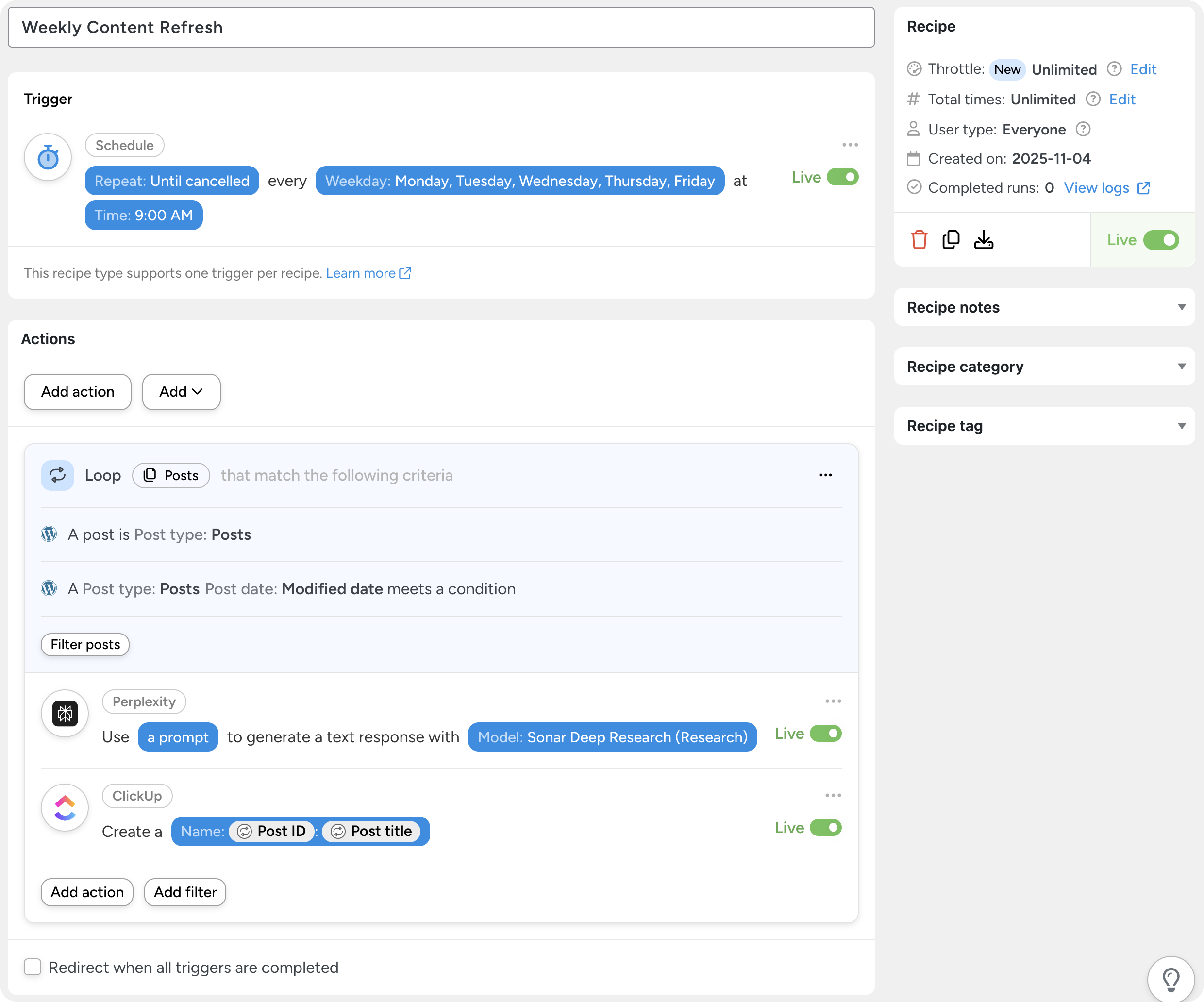
In the recipe pictured above, I’ve set up a simple content automation. Every weekday at 9AM, Automator will look for posts that were last modified six months prior to the date of the recipe run. It will then ask Perplexity to scan the posts and find more recent statistics to replace the old ones.
This isn’t the only type of automation to reverse content decay you can set up with Automator. However, if you follow these steps, you’ll have mastered the basics for creating customized automations that meet your content needs.
Let’s get started.
Step 1: Create and Name a New Recipe
To create a new recipe, from your WordPress Admin Dashboard, navigate to Automator > Add new recipe. The modal that appears, select Everyone.
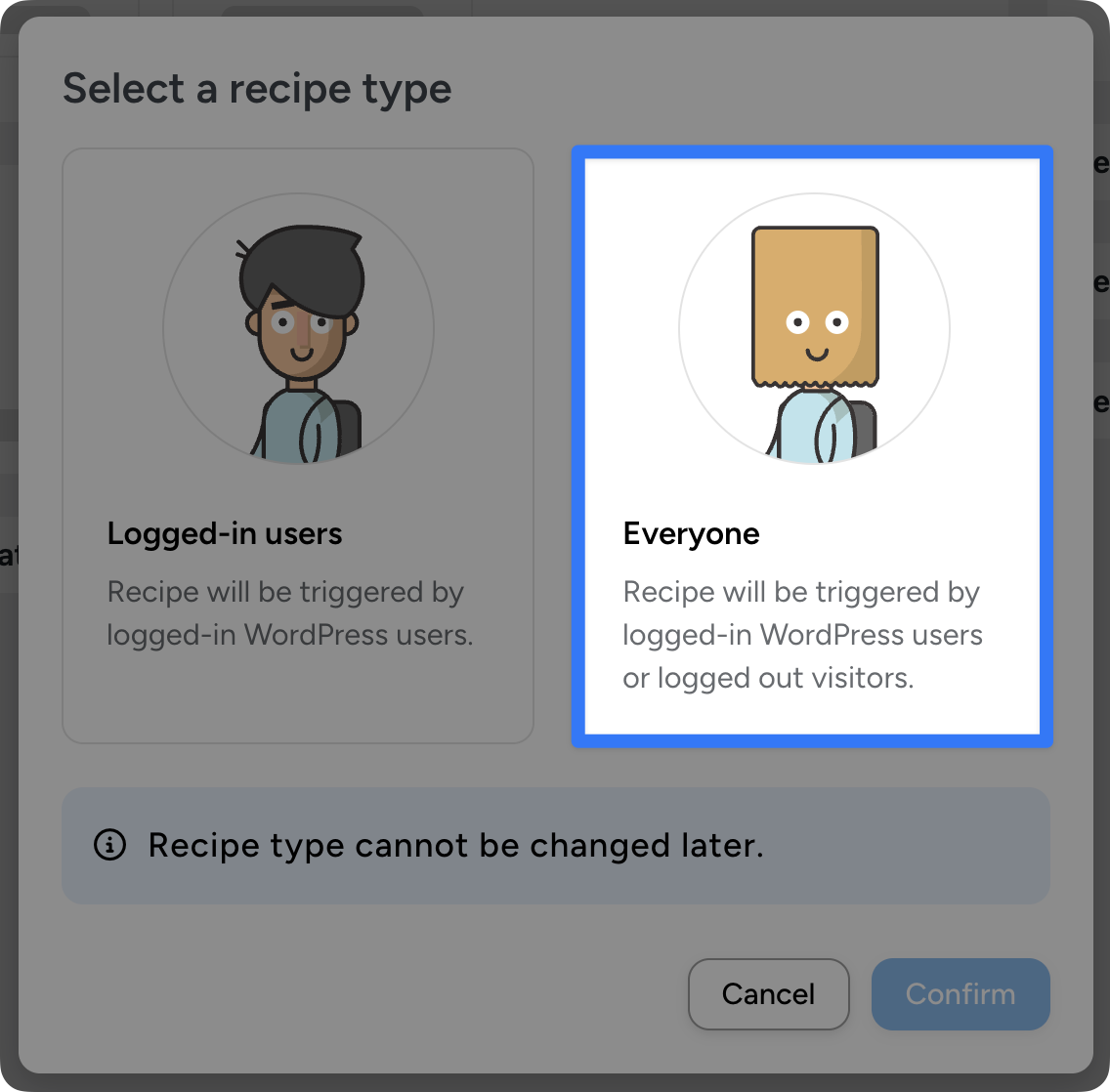
Give your recipe a name that makes it easy to recognize at a glance. For example, I have named this recipe “Weekly Content Refresh”.
Step 2: Set a Schedule Trigger
In the Triggers panel, from the menu of available integrations, select Schedule.
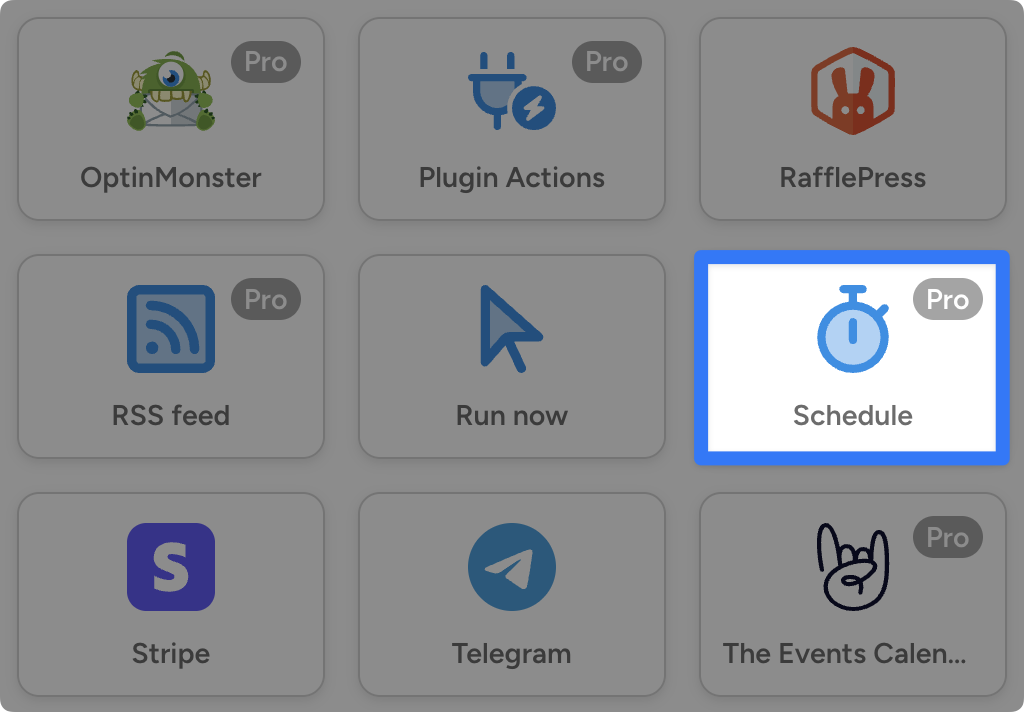
From the dropdown list that appears, select “Repeat every weekday at a specific time”.
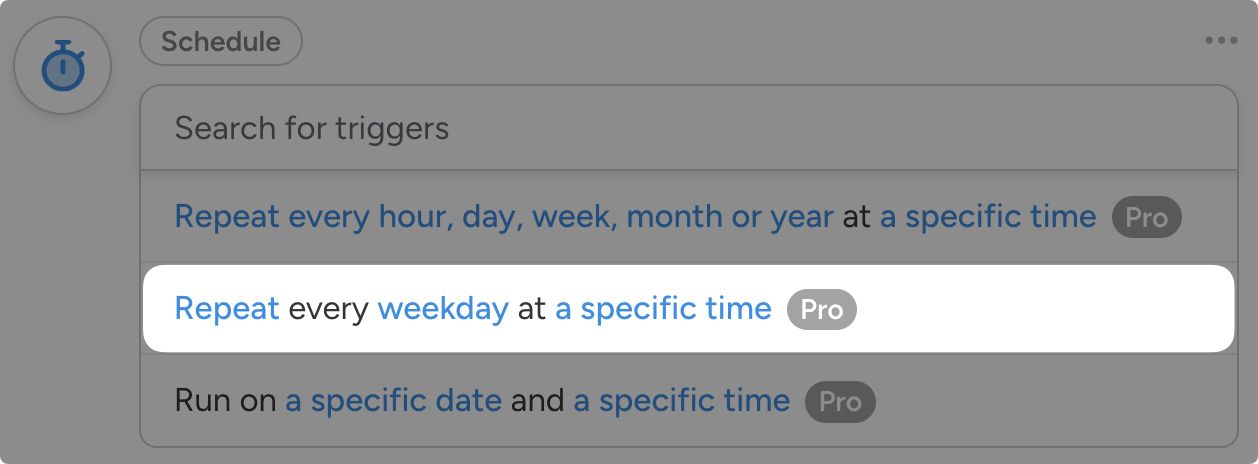
Automator will present you with a simple form to select the weekday(s), time, and number of repeats.
Once you have set these criteria to match your content workflows, click Save.
Step 3: Loop Through Your Old Posts
In Automator, “Loops” are automations that are performed across multiple records, such as users or posts. You can think of Loops like automations performed in bulk.
Want to update every user’s role? That’s a loop. Want to change the price of every product in a specific category in your Woo store? That’s also a loop.
For decaying content, you can use Loops to cycle through your posts based on any number of criteria, including “Published Date”, “Author”, or “Last Modified Date”.
To add a Loop, in the Actions panel, click Add and select Post loop.
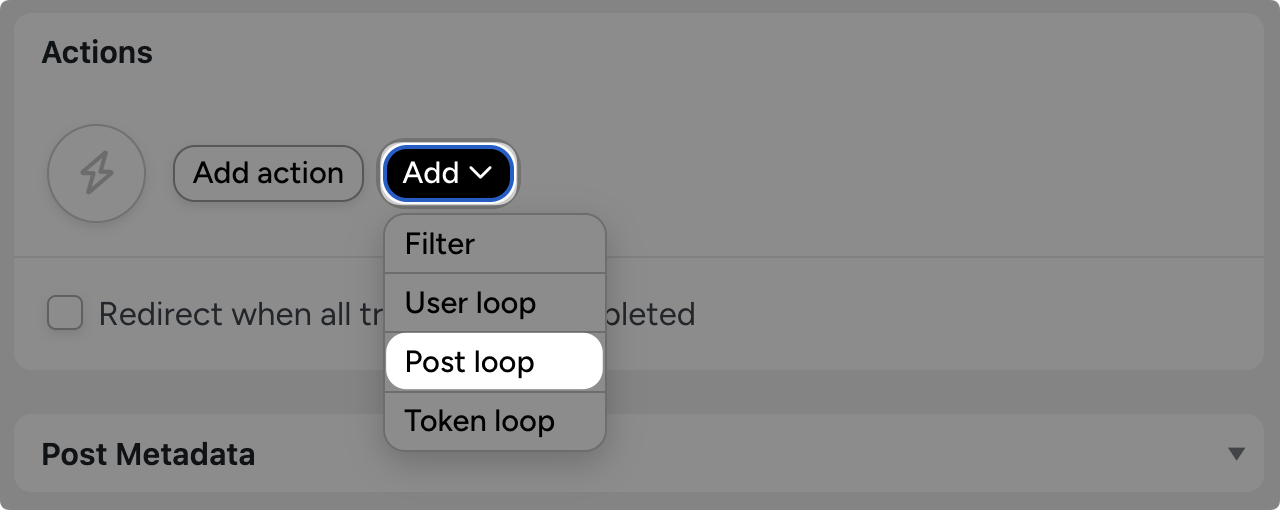
By default, Automator will include a “Loop filter” that targets posts specifically. Just as an aside, you could swap this out to perform actions on any kind of WordPress post, such as “Events” or “Products”.
You probably don’t want Automator cycling through all of your posts every Monday at 9AM. To prevent this, we can add a second filter.
To add a second filter, click Filter posts. In the modal that appears, select WordPress > A specific type of post’s date meets a condition.

Automator will present you with a form to configure the Loop filter. How, exactly, you configure this filter will depend on your specific content calendar and how often you want to update your content.
To set it up as I previously mentioned (to capture posts that were last modified six months prior to the recipe run), follow these steps:
- Post date: Modified date
- Post type: Post
- Criteria: On
- Date: Select the “Current date” token (i.e., dynamic data). To use the “Current date” token, click the Asterisk and select Date and time > Current date.
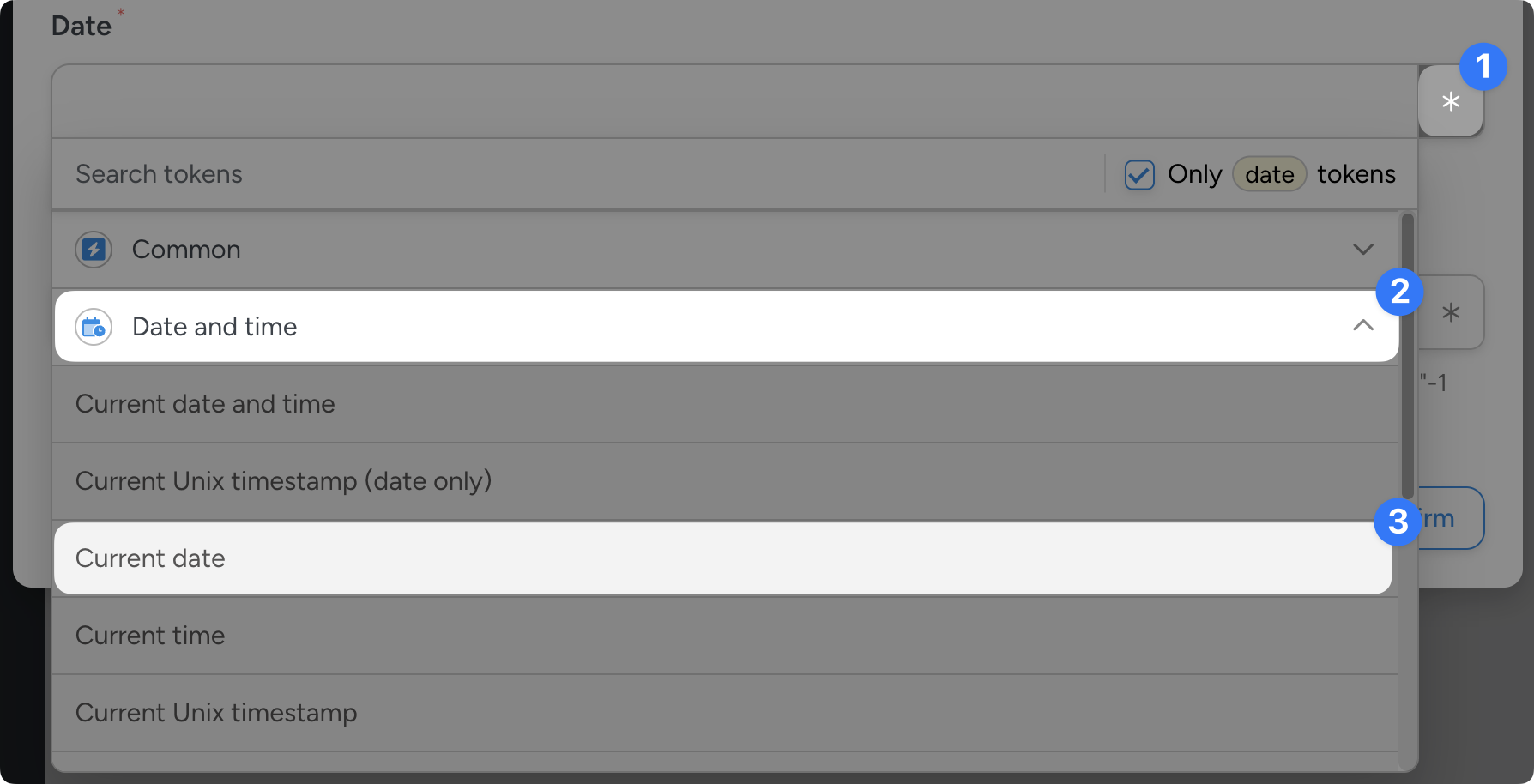
- Date modifier: -6 months
Once you’re finished, click Confirm.
Step 4: Add an AI Action
In the Loop pane, click Add action and select Perplexity (or your preferred AI platform) from the menu of available integrations.
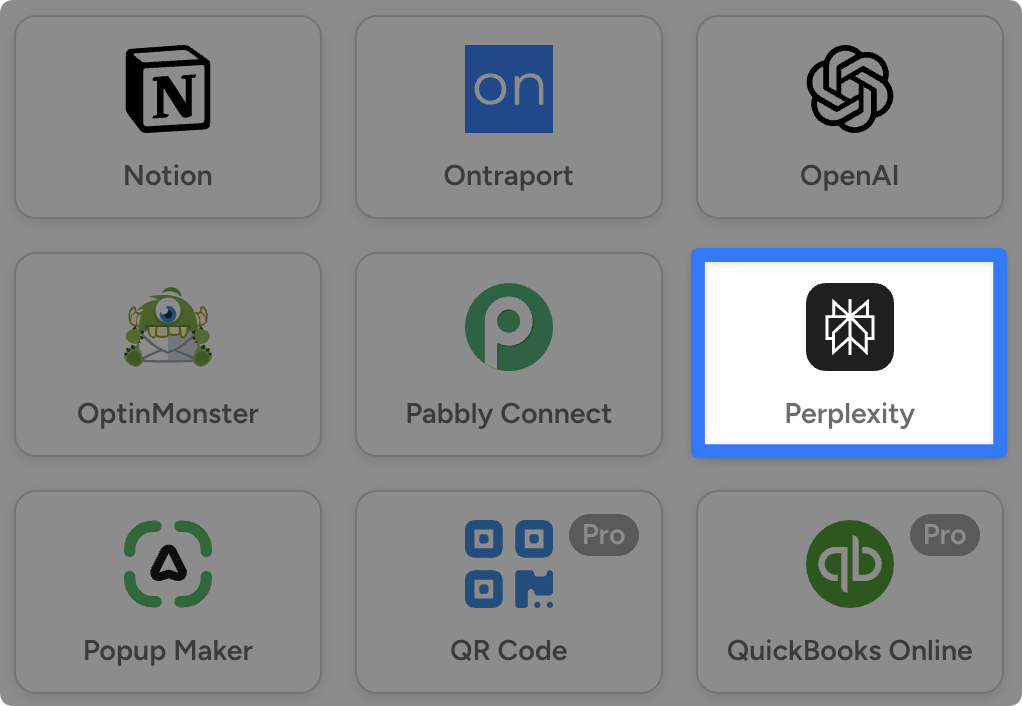
(Note: If you haven’t already connected your Perplexity account to WordPress, simply follow the instructions after clicking on the tile. For a more detailed, step-by-step guide, or to learn how to connect a different AI platform to WordPress, click here.)
From the dropdown list that appears, select “Use a prompt to generate a text response with a Perplexity model”.
Once again, Automator will present you with a form to select the model and draft a prompt. The model that you choose, the parameters that you set, and the prompt that you write will all depend on how, exactly, you want the AI model to update your content.
For example, if I only wanted Perplexity to update the statistics in a blog post, I might create a prompt like this:
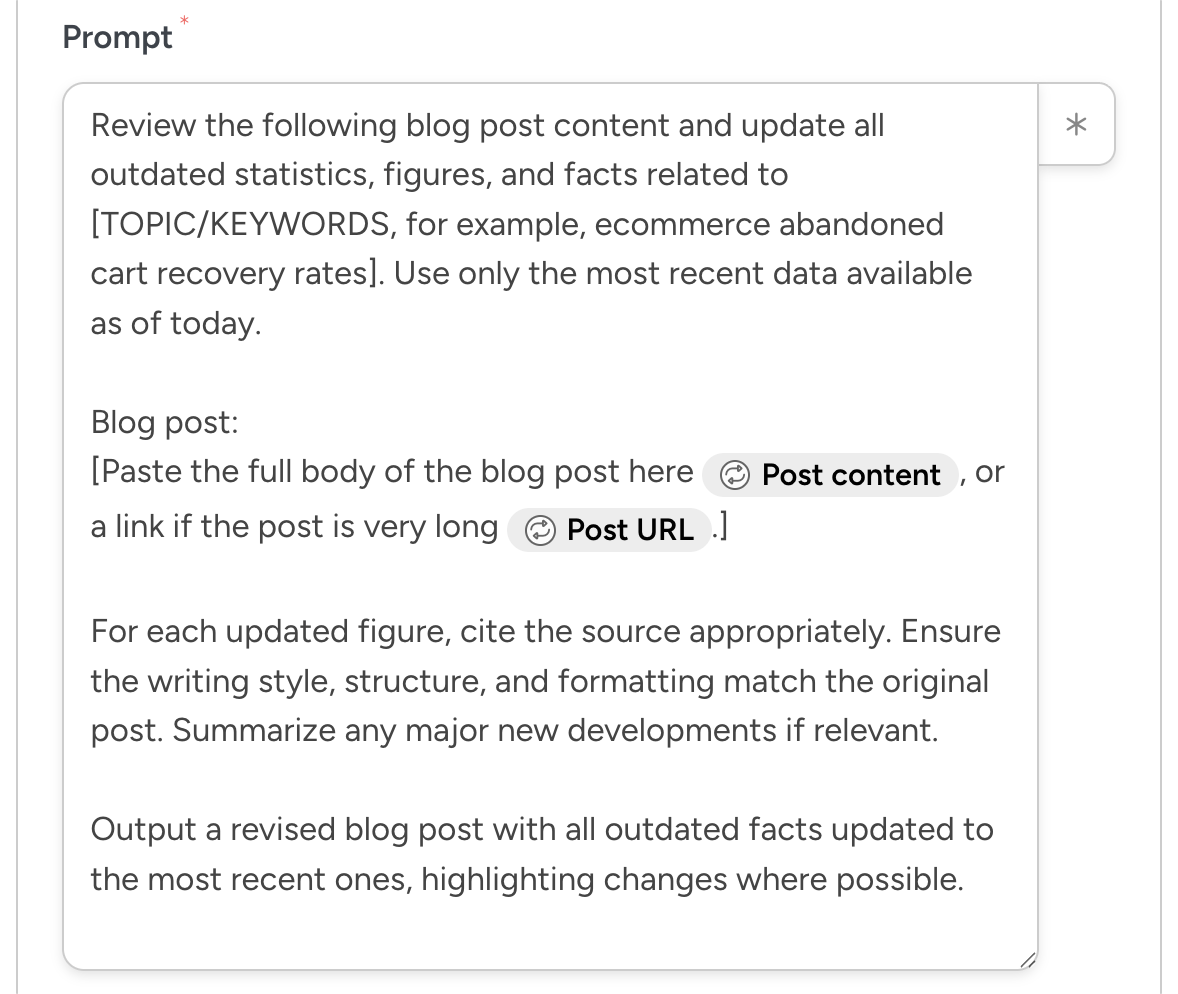
However you choose to craft your prompt, as with any prompt, context matters—a lot! Include tokens such as “Post content”, “Post URL”, “Post author URL”, etc. to give your AI model as much information to work with as possible.
(Pro tip: Use the Advanced Custom Fields plugin to create fields such as “Primary keyword”, “Search Intent”, etc. You can then use these fields as tokens in your prompt for an added layer of context.)
Once you’re finished, click Save.
Step 5: Add an Action to Update Your Content
With 214 integrations, Automator gives you more than just a few options for updating your WordPress content.
You could:
- Update the content automatically in WordPress. (Note: As a general rule, I do not recommend publishing AI content that hasn’t been reviewed and edited by a human. Automator does allow you to change the status of a post. So, you could create an action to change the status, update the content, message a team member to review it, and then have them publish it once they’re confident it meets your editorial standards.)
- Create a task in a project management system such as ClickUp or Notion.
- Send the new content to your content team in Slack, Discord, or via Email.
These are just a few of the options. Based on my own personal content and editorial workflows, creating a task in ClickUp and then messaging a team member in Slack works best.
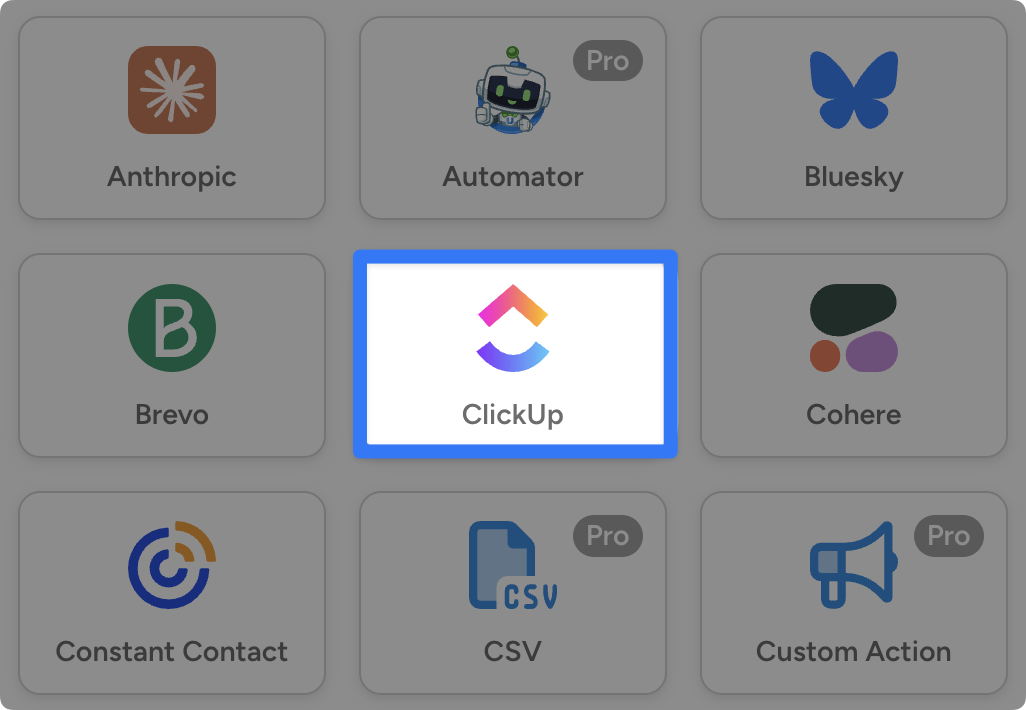
In the Loop pane, click Add action and select ClickUp.
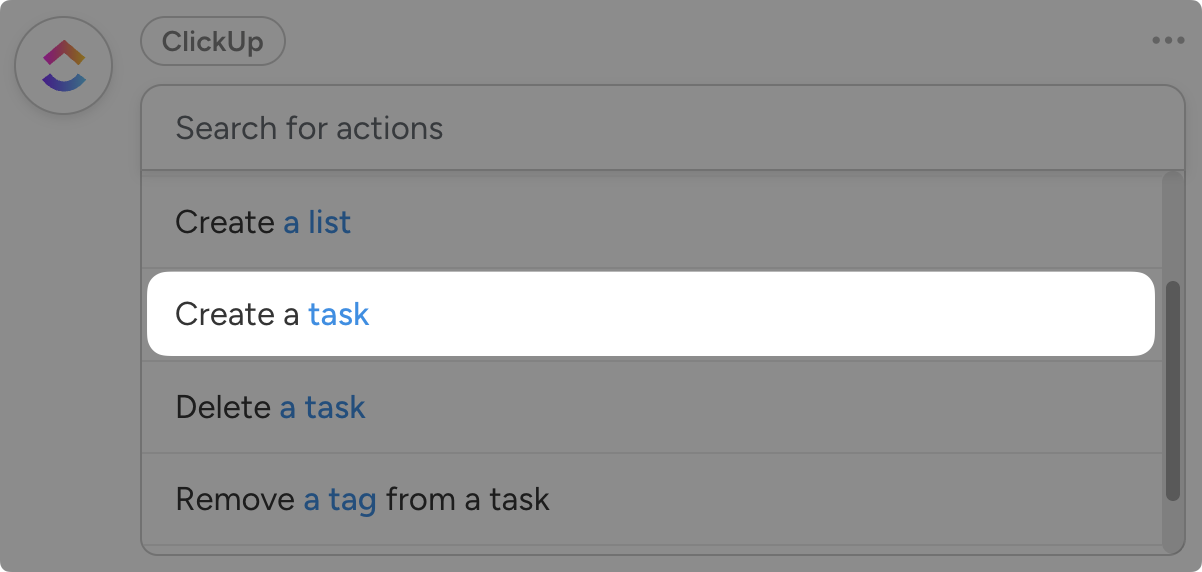
From the dropdown list that appears, select Create a task.
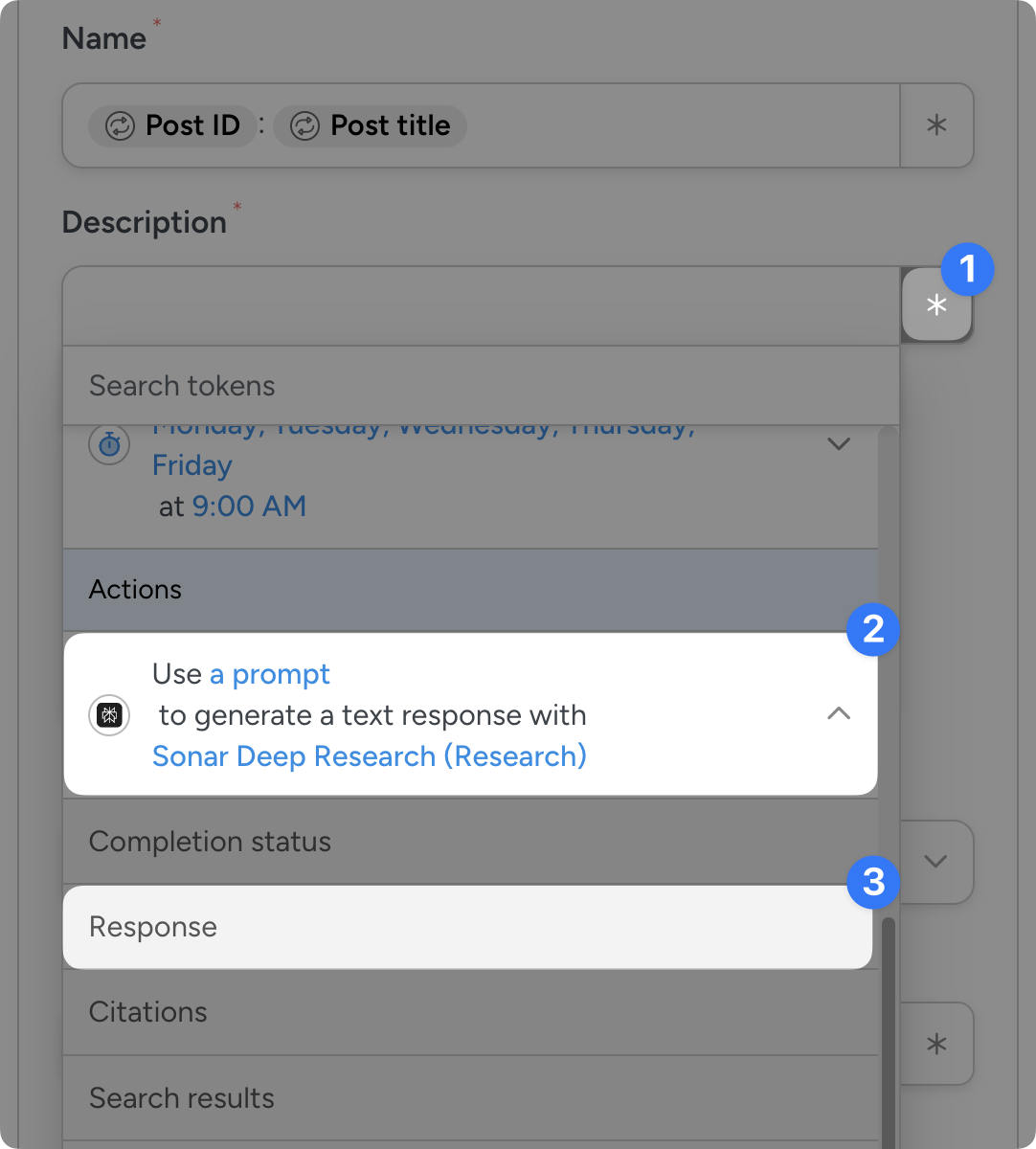
Select the Team, Space, Folder, and List where you want to create the task. In the Description field, include the AI model’s updated content using the “Response” token.
Once you’re finished, click Save.
Step 6: Reverse Content Decay—Automatically!
You’re just about ready to automate your way to immortal, evergreen content. All you have to do is toggle the recipe from Draft to Live.
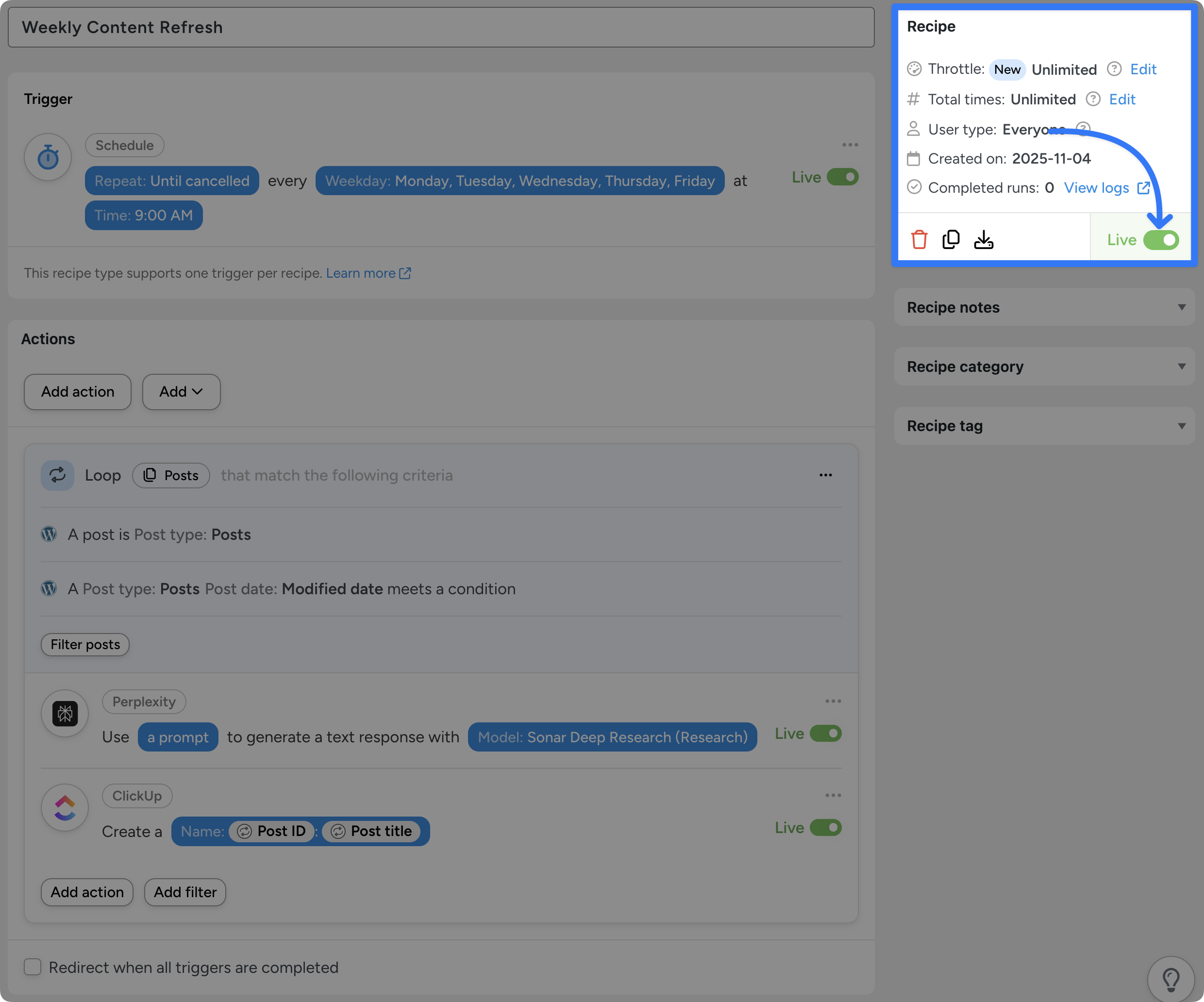
That’s it! You’ve just created a content management automation that will fight off content decay as if it was the Grim Reaper.
If you’re using the free version of Automator, as your content library grows, recipes like these will burn through your complimentary app credits relatively quickly. However, once you upgrade to Automator Pro, you’ll have an unlimited number of app credits to keep your content fresh and engaging.
Forget the Grim Reaper. Upgrade to Automator Pro >>>
Strategies for Preventing Content Decay
Now that you’ve learned the basics of creating automated content workflows, you’re ready to bring your old posts back from the dead. But what if you could keep them from dying in the first place?
Content decay happens quickly—but you can be quicker. With the right strategies and a few smart automations, you can keep your WordPress site thriving, your traffic steady, and your posts perpetually fresh.
Here are the strategies I use to keep content from decaying:
1. Schedule Regular AI Content Audits
Every few months, set an automation that loops through your posts and prompts your favorite AI model to review them for outdated stats, broken links, or weak keywords.
By scheduling these automated audits, you’re effectively running a health scan on your entire content library before any symptoms of decay appear.
2. Maintain a Living Editorial Calendar
Evergreen content only stays that way if you tend to it. Connect Automator with a project management tool like ClickUp or Notion to create recurring reminders for content updates.
You can even have Automator create new tasks whenever a post hasn’t been touched in a year or more. This brings your editorial calendar to life—and makes it a whole lot easier to manage.
3. Strengthen Internal Links Automatically
Internal links are like a circulatory system for your website. They move authority and relevance between your posts, keeping your content ecosystem vibrant.
Pair Automator with AI to identify new opportunities for internal links. In particular, both Automator’s Perplexity and OpenAI integrations have features specific to providing useful URLs.
4. Repurpose Evergreen Content
Sometimes an update to decaying content isn’t necessary. If the keyword optimization is good, the statistics are up-to-date, and the schema is structured, a little rejigging is required.
Turn decaying but relevant articles into newsletters, infographics, short-form videos, or reposted social content.
With Automator, you can trigger these repurposing workflows automatically—sending snippets to your email list or sharing highlights on social media.
It’s recycling, content marketing style.
5. Monitor and Reclaim Backlinks
Backlinks may fade over time, but with a little automation, you can bring them back. Use analytics tools like AIOSEO to flag broken or lost backlinks.
These tools can help you pinpoint where your content’s authority is slipping—whether from deleted referring pages, changed URLs, or outdated links.
6. Maintain Technical SEO Health
Even the most engaging content can’t survive on a weak foundation. Strong technical SEO keeps your site fast, crawlable, and secure, ensuring that your content stays visible and relevant.
A sluggish site, low domain authority (DA), broken schema, or missing meta tags can quietly drain the life out of your rankings. Regularly audit your site’s performance using tools like Google Search Console, PageSpeed Insights, or AIOSEO to catch technical issues before they spread.
Pay close attention to page speed, mobile responsiveness, structured data, and site architecture—all the vital systems that keep your content breathing on the SERPs.
Conclusion: Keep Your WordPress Content Evergreen with Automation
Every piece of content begins with a spark—an idea that comes to life on the page. But without care, that spark eventually fades. Posts grow old, data grows stale, and what was once a thriving source of traffic quietly slips into digital purgatory.
With automation and AI, however, you can break that cycle. Tools like Uncanny Automator act as your content’s eternal heartbeat—monitoring, updating, and reviving your WordPress posts so they never have to flatline again.
By scheduling audits, refreshing keywords, and reissuing your greatest hits automatically, you turn your website into a self-sustaining ecosystem where nothing ever truly dies—it just evolves.
Automatically reverse WordPress content decay >>>
Until next time, happy automating!
Frequently Asked Questions

Related Posts







































































I tried creating this automation but I only get a Invalid Date Format error. The date looks like it needs to be y-m-d but there doesn’t seem to be a way to format the date to that with Uncanny Automator even using the Formatter action.
What did you do to get the date in the correct format?
Hi, John!
Thanks for reaching out—and great observation. You have a few options to reformat the date.
Option 1: Change the “Date format” in your WordPress settings.
1. From your WordPress Admin Dashboard, navigate to Settings > General.
2. Under “Date format” select the radio option “Y-m-d” and click “Save changes”.
This will change how your WordPress site stores dates for all posts, pages, products, etc. Depending on your other workflows and integrations, this might disrupt other automations.
Option 2: Use a Formatter action with action filters.
Your instinct to use the Formatter integration was correct. The key difference is in using “Action Filters” instead of “Loop Filters.”
1. Add a Formatter action within the Post Loop to change the “Post date” token into the “Unix timestamp” format.
2. After the Formatter action, add the AI integration action.
3. To the AI integration action, add this filter:
* General > A token meets a condition.
* In the “Token” field, select the “Output” token from your Formatter action.
* In the “Criteria” field, select “is less than or equal to”.
* In the “Value” field, select Advanced > Calculation.
* In the “Formula” field, select the Formatter “Output” and subtract time. (6 months in Unix time is 15,552,000)
4. Once you’re finished, click “Confirm” then “Save filter”.
5. Add any subsequent actions under this filter.
I hope this helped! I’ll be updating the blog post soon with some screenshots for added context.
Until next time, happy automating!
Thanks so much for getting back to me. Changing the date format in WordPress did the trick. I hadn’t even thought to look at the WordPress settings.
The other method is also really interesting for future reference in creating automations. Thank you.
I do have one more question.
Is there a way to restrict the number of posts that are retrieved to 1 each run?
(I have way too many posts that haven’t been modified in forever and even putting -36 months retrieves over a hundred.)
Hey John,
Another great question. While it isn’t possible to stop a Loop from running on 1 record (post, user, etc.), there are some ways to restrict the number of records included in a Loop.
Once again, you have a few options. This time, however, it really depends on your past publishing schedule and desired workflows.
Option 1: Target Specific Past Dates
Make sure to set the “Criteria” within the Post loop filter to “On” and the “Date modifier” to something like “-6 months” or “-3 years”. This way, whenever the recipe is scheduled to run, the Post Loop actions will only be run on posts that were published or last updated exactly six months or three years prior to the recipe run.
Note: If you published or updated tons of content on a specific date in the past (for example, during a site migration), when that modified date comes around, you’ll end up with a ton of updates to make!
Option 2: Adjust the Schedule Trigger and Add More Filters
This option requires getting a little more strategic about your updates. Create different recipes with varying Schedule triggers and different filters to update content based on categories, authors, etc.
For example, you can have a recipe that runs every Monday at 9AM and only updates posts in [Category 1] from [Author 3]. You can then have another recipe that runs every Wednesday and only updates posts in [Category 2] from [Author 2].
I’m glad we were able to get this recipe working for you!
Thanks again and, as ever, happy automating!